LinkedIn outreach automation is how I keep prospecting going without giving it half my day. Finding the right people, researching their profiles, and writing a personal connection request for each one takes a ton of time. If you already do cold email, LinkedIn is the channel that can book you more meetings, as long as you can stay consistent with it.
I have tried automating this before, and the tools were either too complicated, unreliable, or risky enough that I worried about my account. The setup in this post is the one I landed on. It uses two AI agents in Gamut: one finds prospects that fit my ideal customer profile, and one sends personalized connection requests. Then I put the prospecting on a schedule.
If you would rather find leads and email them, I also have a walkthrough on finding and auto-emailing LinkedIn leads with Claude. This post is about working inside LinkedIn itself.
LinkedIn Outreach Automation: The Short Answer
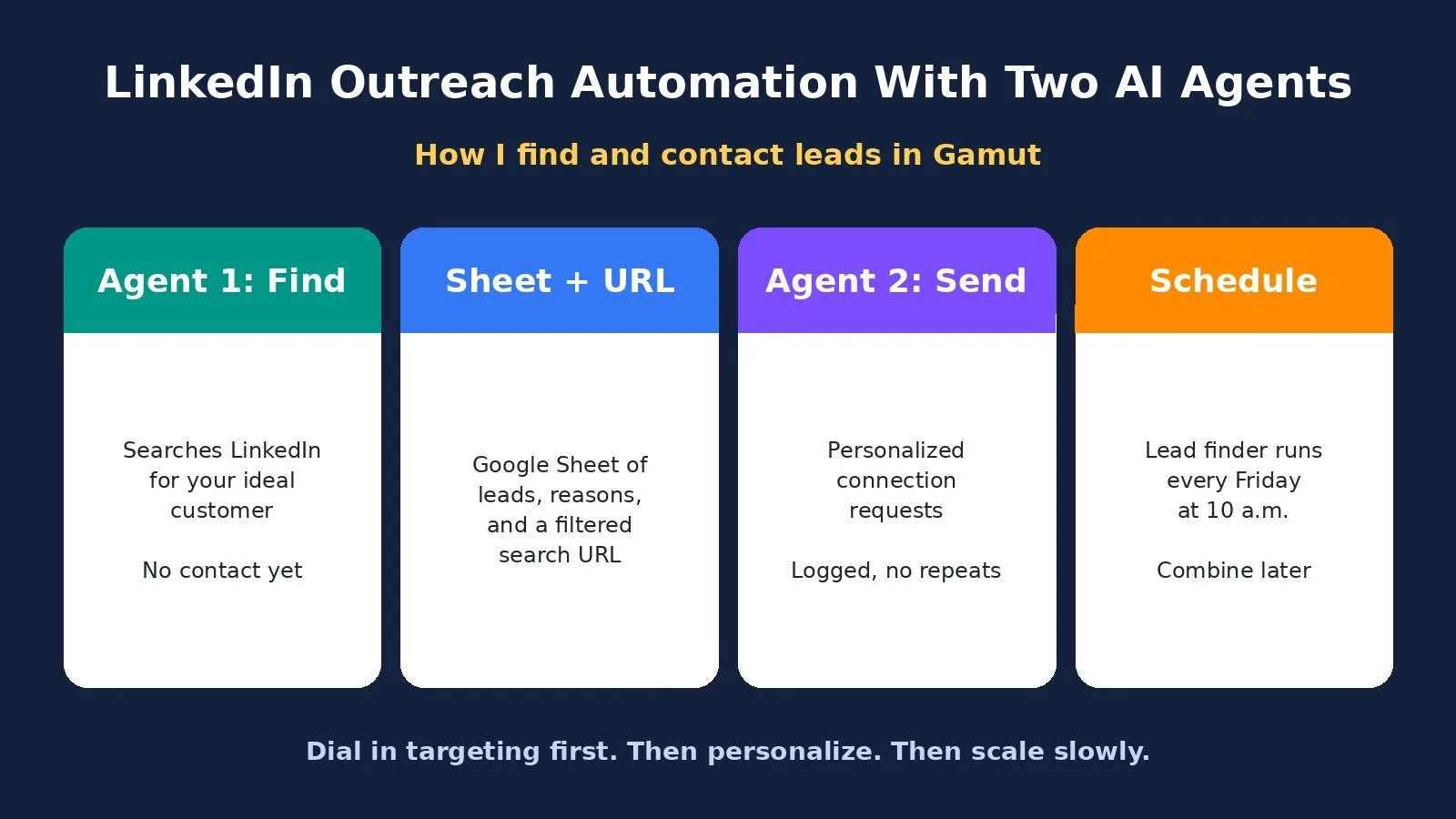
The simplest LinkedIn outreach automation I have found uses two AI agents. The first agent searches LinkedIn for people who match your ideal customer, explains why each one fits, and saves them to a Google Sheet with a filtered search URL. The second agent uses that URL to send personalized connection requests and keeps a log so it never contacts the same person twice. You can schedule the prospecting agent to run every week. Start small, because LinkedIn limits connection requests and does not allow unauthorized automation.
Why I Split LinkedIn Outreach Into Two Agents
Most people think of LinkedIn automation as one tool blasting messages. I set it up differently on purpose.
Agent 1 finds prospects. It searches LinkedIn, works out the right search terms and filters, picks people who fit, and justifies each pick. It does not contact anyone.
Agent 2 does the outreach. It takes the filtered search URL from the first agent, reads each profile, and writes a connection request that is specific to that person.
Splitting the work gives you a chance to dial in your targeting first. You can check that the leads are actually good before anything goes out under your name. Once you are happy with both agents, you can combine them into a single agent and schedule the whole thing.
Step 1: Set Up Gamut
The only tool I used for this is Gamut. When I recorded the video, the free trial came with $100 in usage with no credit card required, which is enough to generate a good number of leads and really test it. I checked the pricing page again today, and that offer is still listed. I cover the paid plans further down.
Hit start free trial and create an account. You can sign in with Google or use your email address. It takes a few seconds.
From the dashboard, install the Gamut desktop app. There is an installer for Mac and one for Windows. Install it, sign in, and you are ready to create your first agent.
The reason this works for LinkedIn is that Gamut gives each agent its own browser. The agent logs in as you and uses your LinkedIn account to search and act, the same way you would.
Step 2: Build Agent 1, the LinkedIn Lead Finder
Hit new agent and give it a name. Then describe what you want in plain English. Here is the shape of the prompt I wrote:
Act as my LinkedIn lead generation agent.
Context on my business: I run a website and create YouTube content, and I am looking for sponsorship and affiliate partnerships.
Use your browser to search LinkedIn and find 10 people who manage affiliate programs and partnerships.
Figure out the best search terms, filters, and other parameters.
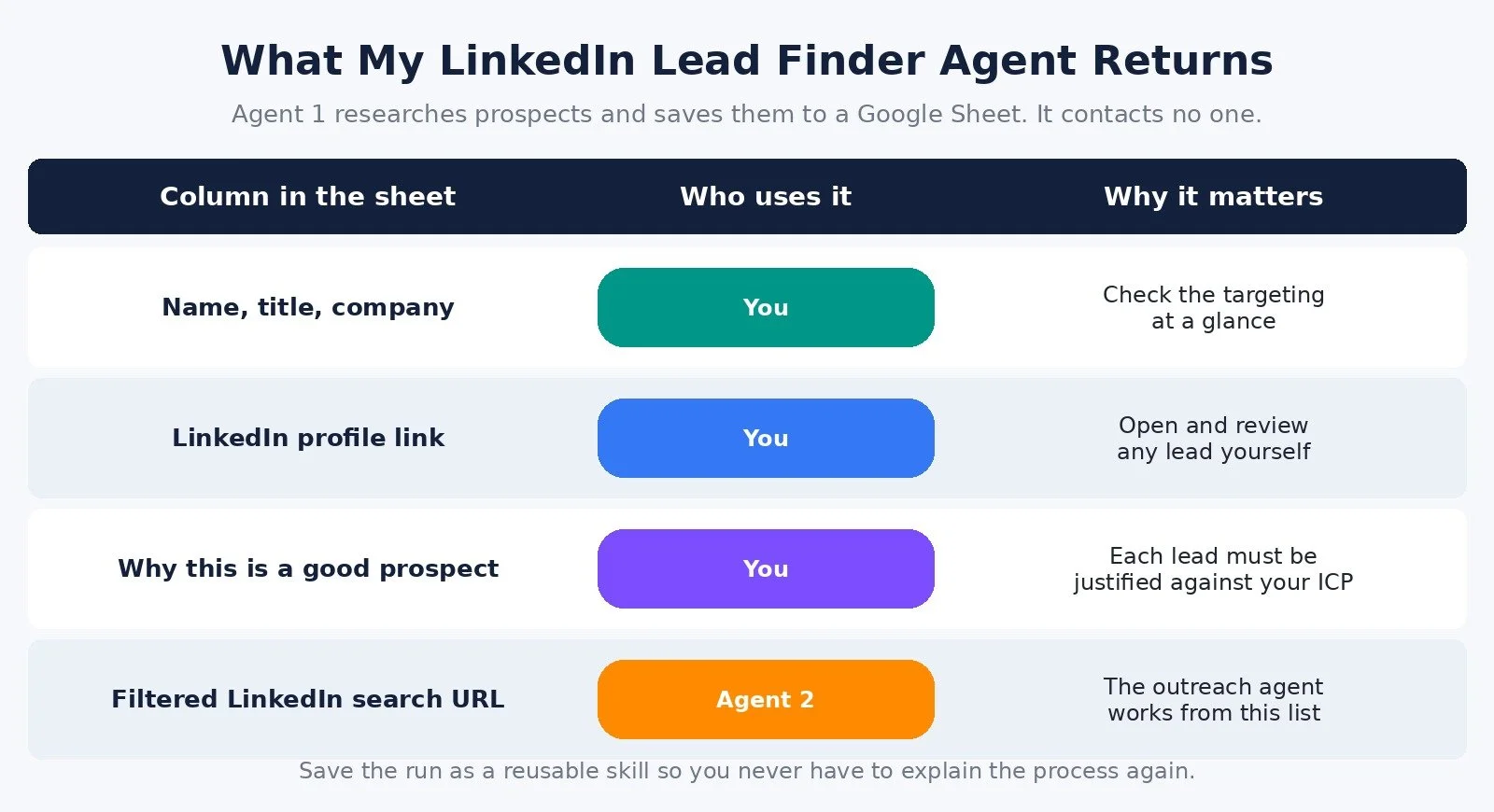
Create a Google Sheet with each person's name, title, company, LinkedIn profile link, and why they are a good prospect, plus a filtered LinkedIn search URL.
Do not contact anyone. Your job is only to find these prospects.
Change the target to your own business. You can also train it on your website and attach files if you want to give it more detail about your company.
That filtered search URL matters. It is what the second agent uses later. The Google Sheet is for me, so I can look over the leads and keep track of who I have reached out to.
Gamut also lets you choose models from all the major providers: Anthropic, OpenAI, X, Google, and Meta. For this agent I used Opus 5.5 on high, because that is what had been giving me good results.
When I hit the arrow, a browser window popped up so I could log in to LinkedIn. I entered my credentials and confirmed on my phone. If you have not connected Google yet, a similar sign-in comes up for that so the agent can create the sheet. Then it goes to work, and you can watch it in the corner of the screen.
It asked for access to the Google Sheet so it could add the people it found. When it said it was done, the sheet was there. The companies made sense, the titles made sense, and each row had the profile and the reason that person was a relevant prospect. The filtered LinkedIn search URL showed the same contacts inside LinkedIn. It worked out that search logic on its own.
What your LinkedIn plan changes. If you are on the free version of LinkedIn, the filters you and the agent can use are more limited. LinkedIn Premium gives you more, and Sales Navigator gives you the best filters, but it is not required. I ran this on a free LinkedIn account because I wanted to show it works there.
Step 3: Refine the Results and Save Them as a Skill
If some leads are not a fit, you can chat back and forth with the agent until the results are where you want them. I was happy with this batch.
The part that saves the most time later is turning the run into a skill. I told it something like: save the process you just followed as a reusable skill called LinkedIn new lead finder. In plain terms, I wanted to run this prospecting again without explaining the whole process.
Gamut created the skill. On the agent's homepage you can see it listed, along with the Google Sheet skill it created and the Google connection. Gamut connects to a lot of apps, and each one you connect shows up there.
Every new run of this agent is nested under its sessions. To find a different set of leads, I just asked from the main homepage: use my LinkedIn lead finder skill to find 10 marketing directors at B2B software companies. That is a completely different target, and this time I ran it on Grok instead of Claude to show you can experiment with models. It came back with another spreadsheet and the LinkedIn search URL.
Because the agent has to justify why each lead is a good fit, you get targeted leads instead of a raw list of names.
Step 4: Build Agent 2 to Send Personalized Connection Requests
Now the outreach. Go to new agent and give it another plain-English prompt. Mine included:
My website and who I am targeting.
Why I am reaching out. If you are selling a service or asking about something, give it the detail. What is your pitch?
The filtered LinkedIn search URL from Agent 1.
A maximum of five connection requests.
A few tips for the finicky LinkedIn pop-ups, so it does not get stuck.
This is my real LinkedIn account, so I did not want to spam random people. For the live demo I pasted a search URL that only contained one person on the Gamut team. Normally you would paste the URL Agent 1 gave you.
For this agent I chose ChatGPT Astra at medium. LinkedIn asked me to sign in again, but you only do that once when you create the agent, not every time it runs.
Then I watched it work. It looked up the person's profile, found a recent piece of content he had posted, and wrote a connection note that mentioned it and explained I was reaching out about my YouTube video. It sent the request, and LinkedIn showed it as pending. The agent gave me a summary of exactly what it said, and it created a LinkedIn log so it knows not to contact that person again.
With a full list, it would go through each person and send a personalized request, within whatever your LinkedIn plan allows. You can save this agent's process as a skill too, the same way as before.
Step 5: Put Lead Finding on a Schedule
To make this run without me, I went back to the first agent's homepage and said: find me 10 new leads every Friday at 10:00 a.m. using my LinkedIn new lead finder skill. That is all. Gamut built the routine, and on the agent I could see the scheduled trigger, set to run in the next 19 hours.
The second agent is not on a schedule yet, and that is on purpose. It needs the search URL from the first agent, so you cannot fully automate it as two separate agents. Once you have tested lead quality and outreach, combine both into a single agent and schedule that. The combined prompt is in my free prompt guide, linked at the end of this post.
LinkedIn connection requests are limited, so I also use Gamut for other sales tasks. I was recently at VidSummit in Dallas, which had a couple of thousand attendees. Normally I would have to go through all of those profiles by hand to find good business partners or potential customers to meet.
Instead, I spun up a new agent with a prompt saying I am attending VidSummit, a bit about my business, and a request to find a person who is a good fit, research the profile, and explain why. I asked for one person because the event had already happened, and I told it not to send the message. In real use, you would want more than one. This time I ran it on Claude.
It popped up the browser for me to sign in, then started reading profiles. It opened someone I was already connected with, recognized that, and skipped them. Then it found someone, gave the reason they were a good fit, and drafted a message to try to set up a meeting. You could even have an agent check your messages daily and reply, so you arrive at an event with meetings already lined up.
Is LinkedIn Automation Safe? What You Need to Know
There are a few things you should know before you use this for LinkedIn outreach.
Connection limits. On a free LinkedIn account, you can only send a limited number of personalized connection requests each month. If you plan to do this regularly, you will probably want LinkedIn Premium. You do not need Sales Navigator unless you want more advanced prospecting and search features. Even Premium and Sales Navigator are not unlimited, so use your requests wisely.
The rules. LinkedIn automation is still a gray area. LinkedIn does not allow unauthorized automation, and there is always a risk your account gets restricted. One advantage of Gamut is that it runs locally on my computer through my regular internet connection, not on some random cloud server. That does not eliminate the risk.
Judgment. My biggest piece of advice is to use common sense. LinkedIn outreach is not about blasting generic messages to random people. Even with cold email you should personalize, and on LinkedIn you need to be even more selective. I would rather reach out to 10 highly qualified prospects than 100 people who are not a fit.
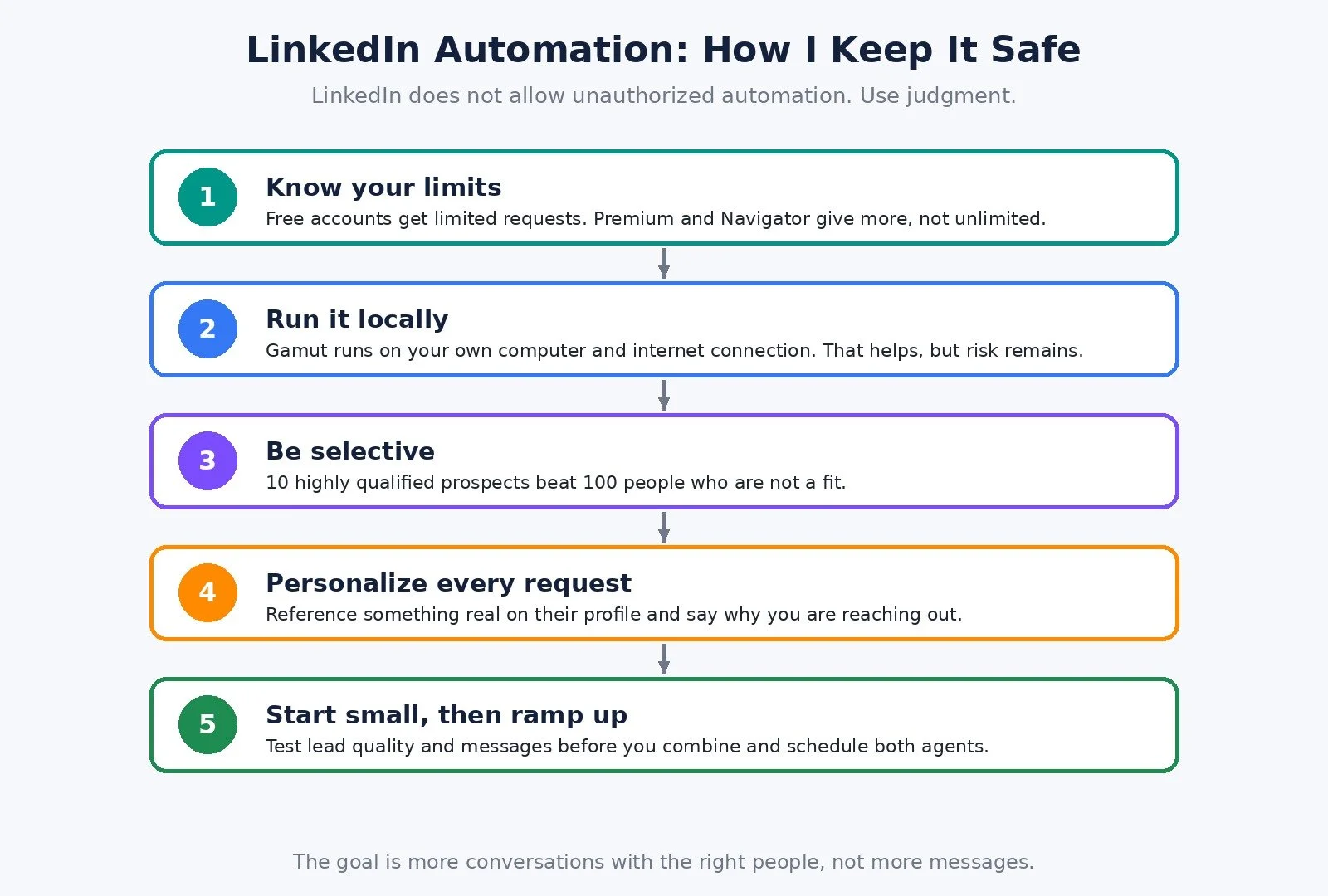
That is the other reason I built this with two agents. It lets you get the targeting and the messages right before you scale anything. The goal is not to send as many messages as possible. It is to start more conversations with the right people.
Gamut Pricing (Checked November 17, 2026)
I checked Gamut's official pricing page today:
Free trial: $0, with $100 in credits and every Plus capability unlocked. No credit card required.
Plus: $30 per user per month, including $30 of usage each month, with pay-as-you-go beyond that. Unlimited agents and connections, browser and computer automation, team skills and agent templates, and personal and team workspaces.
Pro: $100 per user per month with $100 of usage, or $200 per month with $200 of usage, with pay-as-you-go beyond that. Pro adds Claude Fable and OpenAI Astra on top of everything in Plus.
The pricing page lists OpenAI Astra as a Pro model. I used ChatGPT Astra for the outreach agent in the video, so check which models your plan includes before you copy my exact setup. The pricing page also says Gamut is open source under the MIT license and can be self-hosted.
If you want to try it, you can start a Gamut free trial here.
Who This Is For
A good fit if:
You sell to businesses and your buyers are active on LinkedIn
You already do cold email and want a second outbound channel
You want help with research and personalization, not a message cannon
You are willing to start small and review the leads and messages yourself
Look at other options if:
You want to send high volumes of generic messages. LinkedIn limits requests and does not allow unauthorized automation.
You mostly want leads to email. My Claude MCP LinkedIn leads walkthrough covers that route.
You want an AI sales teammate that also works your inbox and CRM. I covered that in my Lindy AI sales agent review, and I use Claude with Streak for sales follow-ups once leads turn into conversations.
FAQ
What is LinkedIn outreach automation?
It is using software to handle parts of LinkedIn prospecting and outreach for you. In my setup, one AI agent finds and qualifies prospects, and a second agent sends personalized connection requests from my own account.
How do I automate LinkedIn outreach with AI agents?
Create an agent that searches LinkedIn for your ideal customer, saves the leads to a Google Sheet, and gives you a filtered search URL. Save that as a skill. Then create a second agent that uses the URL to send personalized connection requests, and schedule the first agent to find new leads every week.
Do I need LinkedIn Sales Navigator?
No. I ran this on a free LinkedIn account. Premium gives the agent more filters and more connection requests, and Sales Navigator gives you the best filters, but neither is required to start.
Can LinkedIn ban my account for automation?
It can. LinkedIn does not allow unauthorized automation, and there is always a risk of restriction. Gamut runs locally on your computer with your normal internet connection, which helps, but it does not remove the risk. Keep volume low and messages personal.
Is Gamut free?
Gamut has a free trial with $100 in credits and no credit card required. After that, Plus is $30 per user per month and Pro starts at $100, per the pricing page I checked on November 17, 2026.
Where are the prompts?
All of the prompts from the video, including the combined single-agent prompt, are in my free LinkedIn lead generation prompt guide.
What to Do Next
Grab the prompts from my free prompt guide and rewrite them for your own target customer.
Start a Gamut free trial, install the desktop app, and build the lead finder agent first.
Check the first batch of leads, save the process as a skill, then build the outreach agent and test it on a handful of people.
Schedule the lead finder, and combine both agents only once you trust the results.
Browse Best Tools for the rest of the stack I recommend.
A lot of small businesses are one or two bad months away from real trouble, which is why a consistent pipeline matters. Paid ads keep getting more expensive, and content can take months to bring in leads. Outbound is still one of the most affordable ways to generate new business, and you control the tap. Start small, get your first agent working, and ramp up as the leads and messages get better.
If you want help setting up AI and automation in your business, I take on projects through my services.
Disclosure: Some links in this post are affiliate links. If you purchase through them I may earn a commission at no extra cost to you. The video this post is based on was sponsored by Gamut.
Make more. Spend less. Work less. Let your agents do the prospecting so you can spend your time on the conversations.