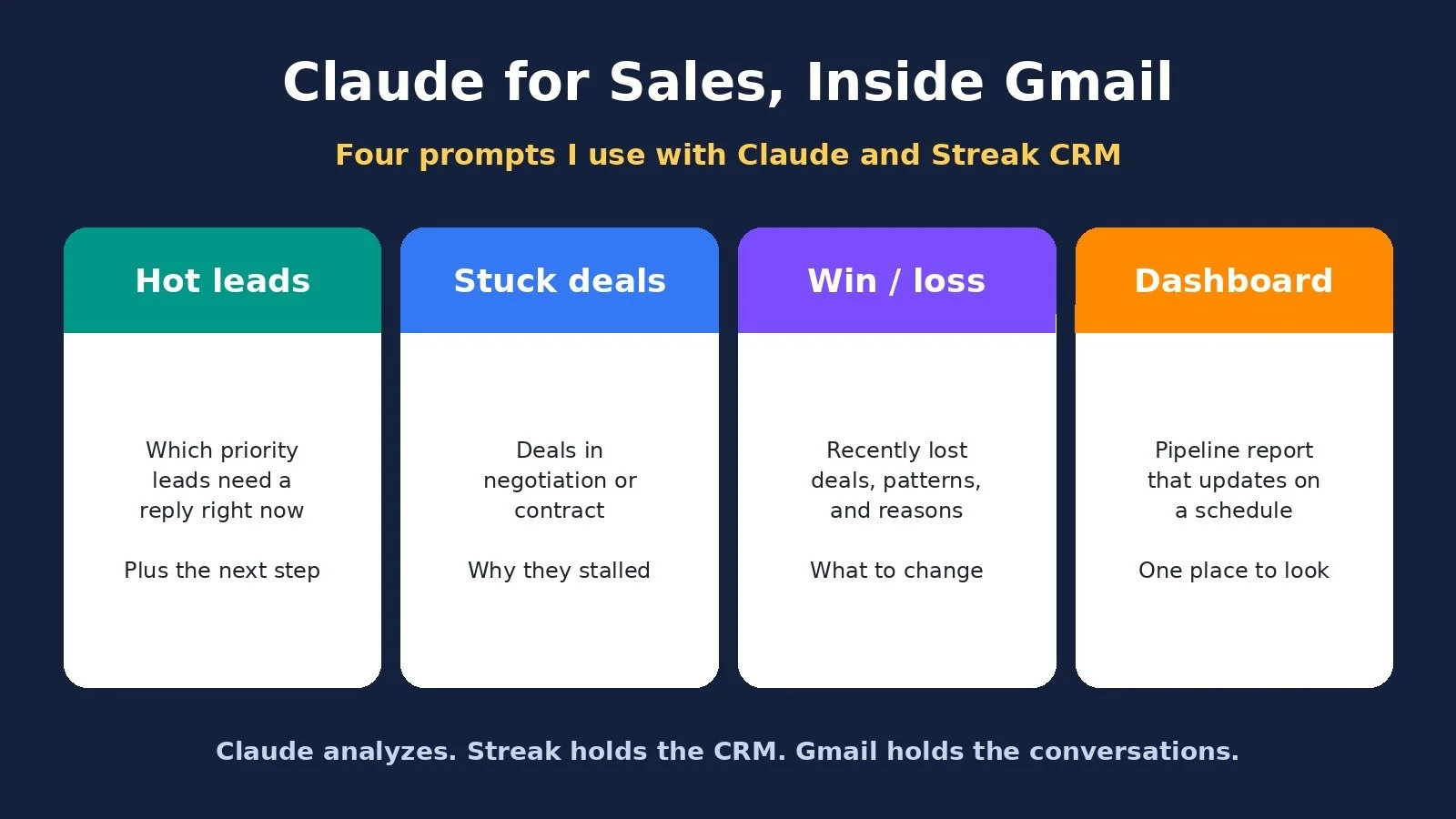
I use Claude for sales the same way I would use a sharp analyst: it tells me which leads need a reply, which deals are getting stuck, why I am losing opportunities, and what I should do next. I can get that from a few plain-English prompts in a few minutes.
The setup is simple. Claude does the analysis. Streak CRM lives inside Gmail, so the deal notes and the actual email thread sit in one place. That is what Claude reads.
This post walks through exactly what I did in the video: installing Streak, connecting it to Claude along with Gmail, and the four prompts I actually use. If you want Claude for a different job, I also have a walkthrough on automating Instagram DMs with Claude.
Claude for Sales: The Short Answer
Claude for sales works best when your CRM and your inbox are in the same place. I connect Claude to Streak and Gmail, then ask it to surface priority leads, explain stalled deals, report on lost deals, and keep a pipeline dashboard updated. In the walkthrough, each analysis took about two minutes. You still need a real pipeline in Streak first, and you should check the sources before you follow up.
Why I Use Claude With Streak, Not a Separate CRM
If you have used another CRM, you already know the problem. The deal info and notes live in the CRM, but the real conversation is sitting in your inbox. There is never one source of truth.
Streak lives directly inside Gmail. Because the CRM and the email thread are together, Claude can see what is actually going on with a lead or a deal instead of guessing from a half-updated record.
Claude is the brain. Streak is the CRM. Gmail is the conversation history. Once both connectors are on, I can ask Claude to act as a sales analyst or assistant without digging through the pipeline myself.
Step 1: Get Claude and Streak Ready
You need two tools.
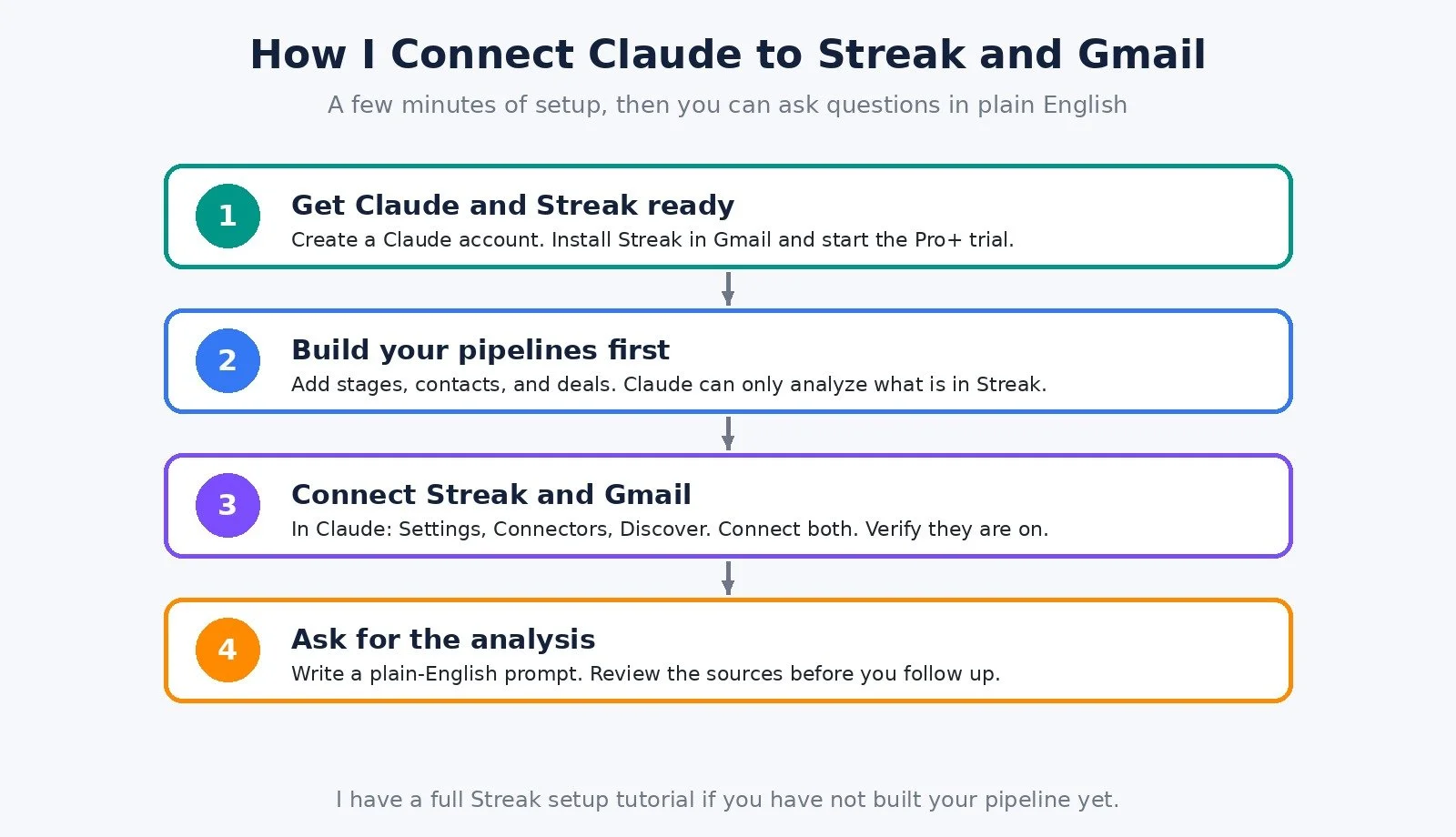
Claude. If you do not have an account, go to claude.ai and create one for free. I used the desktop app in the video. The browser works the same way for this.
Streak. This is the CRM you add to Gmail. Open the link, hit get started for free, and add the Chrome extension. It is two clicks. Then you land in Gmail, hit sign in, sign in with Google, and you are in.
From there, choose Streak Basic and start the Pro+ trial. Enter your information and activate the 14-day free trial. I will come back to current pricing later in this post. The trial is what I used to get a full pipeline in front of Claude.
You can still browse Streak yourself inside Gmail. You will see your pipelines and leads there. In this workflow, though, Claude is the one doing the analysis.
Step 2: Build Your Pipeline Before You Connect Claude
Claude can only analyze what is already in Streak. You need pipelines, contacts, leads, and deal stages set up first.
I am not going to repeat the full setup here. I already have a step-by-step Streak CRM tutorial that covers installing Streak, building pipelines, adding boxes, and using it inside Gmail. Do that first if you want to follow along, or watch this walkthrough first and set Streak up after.
Once the pipeline exists, the last setup step is connecting it to Claude.
Step 3: Connect Streak and Gmail to Claude
In Claude, open your name, then Settings, then Connectors. Hit Discover and look for Streak. Click it, log in, and it connects in a few seconds.
If you have not given Claude access to Gmail yet, do that the same way. Each connector takes a few seconds.
Then verify both are actually on. Start a new chat, hit the plus icon, go to Connectors, and you should see Gmail and Streak turned on. That is the whole setup. Claude can now help with sales.
Prompt 1: Surface Hot Leads and Prioritize Follow-Ups
This is the prompt I use when I am juggling too many things and I do not want a new lead to slip through.
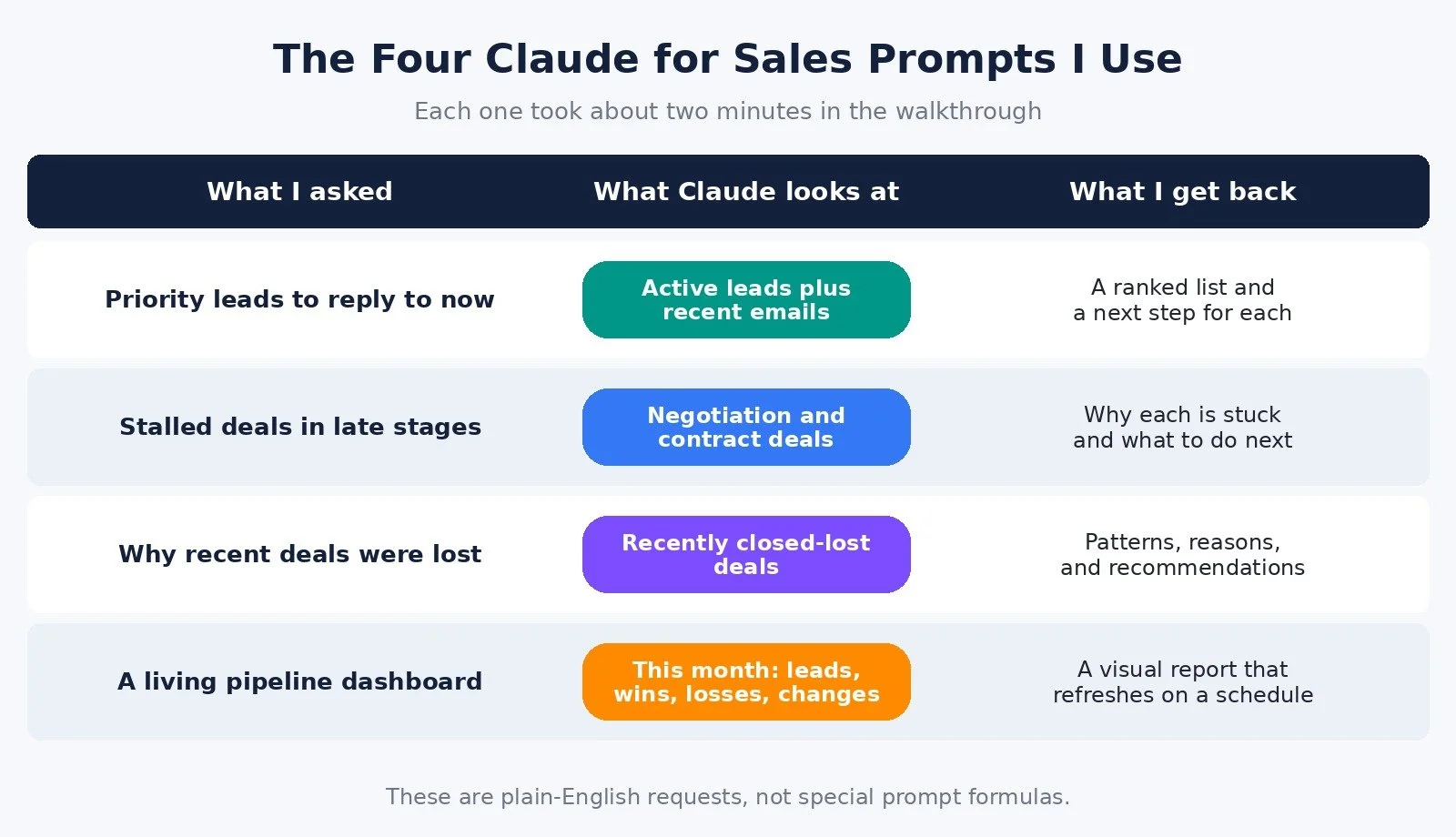
Look at my active leads that are assigned to me in my CRM, including their recent email conversations. Which priority leads do I need to respond to right now? What should my next step be for each one? Prioritize the most important ones first.
Claude looks at the CRM and the conversations in Gmail, then surfaces what it thinks I should focus on. In the walkthrough, that took about two minutes. I got a clear view of what I needed to reply to now, where I needed to nudge, and what had been flagged, with sources so I could open the thread and follow up myself.
That is the point. I am not asking Claude to send the email for me. I am asking it to point me at the right leads, in the right order, with a next step I can check.
Prompt 2: Analyze Stalled Deals in Negotiation and Contract
Leads are not the only thing that slips. Deals in negotiation or contract are further along, and those are the ones I do not want to lose momentum on.
I asked Claude to look across my active deals in those stages, including how long they had been there and any recent activity, emails, or notes. Then I wanted two things: why each one was stuck, and what I should do next. I want a recommendation, not just a status report.
That also took about two minutes. I could see which deals were actually stuck, a breakdown of why, which ones were moving well, how long we had been negotiating, and a next action for each.
Before this, I used to block off about an hour to go through leads and deals myself and figure out what I had missed. The basic idea is that Claude, working with Streak, becomes the analyst that does that first pass.
Prompt 3: Win/Loss Analysis on Recently Lost Deals
I also want to understand why deals are lost. Is it a poor fit? Budget? Did I handle something wrong in the sales process? Those are things I can improve, but only if I can see the pattern.
I asked Claude: look at my recently lost deals and give me a comprehensive report on why they were lost.
It went through the last 30 deals marked closed-lost and built a detailed report. I could see the reasons at a glance. No responses were high. A poor fit on pricing showed up. Every deal was summarized by why it was lost, and Claude also pulled out patterns and some recommendations.
I will not walk through every line of that report here. The useful part is the shape of the work. This is the kind of analysis an analyst might spend a few days on, reading threads and trying to explain the losses. I can also tell Claude to go further back, do another 30, or look at 100.
Prompt 4: A Pipeline Dashboard That Stays Updated
The last thing I wanted was ongoing visibility: a way to see how the month is going without rebuilding the report by hand.
I asked Claude to build a pipeline report for this month: new leads, deals that progressed, stalled deals, wins, losses, pipeline value, and important changes. I told it to make a visual dashboard I could reference, and to update it every morning at 8 a.m.
That was one prompt, in plain English, just like the others. It is not a special formula. Claude created the report. I could see stages, important changes, what had progressed, what had gone quiet, wins, losses, CRM gaps, and new leads, separated by me and by one of my reps.
This becomes a living artifact. I get a link I can bookmark. In the walkthrough, Claude was set to refresh the data every Monday. If your sales process moves faster, you could also do it daily. I had asked for 8 a.m. each morning, and Monday is what I ended up with on screen, so set the schedule that matches how you actually work.
You can also ask for any of these reports per rep, or just a quick update. I asked for a summary of how one of my reps' leads had been doing, got a short rundown, and could keep chatting about it.
Claude for Sales Pricing (Checked November 12, 2026)
There are two products in this setup, and I checked official pricing for both today.
Claude, on anthropic.com/pricing (which redirects to claude.com/pricing):
Free: $0, with limited usage
Pro: $20 per month if billed monthly, or $17 per month with annual billing ($200 billed up front)
Max: $100 per month, or $200 per month for the higher Max/Ultra tier shown on the page
Team starts at $20 per seat per month billed annually, or $25 billed monthly
You can create a Claude account for free, which is what I said to do in the video. How much analysis you can run depends on your plan and usage limits.
Streak, on streak.com/pricing:
There is a free Streak plan that works inside Gmail. It includes email and link tracking, snippets, and 50 mail merge sends per day. It does not include CRM pipelines, so it is not enough for this Claude workflow.
Streak has a free 14-day trial of the Pro+ plan. That is the trial I started in the video.
Pro is $49 per user per month billed annually, or $59 billed monthly.
Pro+ is $69 per user per month billed annually, or $89 billed monthly.
Enterprise is $129 per user per month billed annually, or $159 billed monthly.
Paid plans include unlimited contacts, pipelines, and records. The feature list I checked also includes the MCP server for connecting Claude and other AI assistants.
AI credits listed on the page: 20 per user per month on Pro, 150 on Pro+, and 500 on Enterprise. Unused credits do not roll over.
If you want to try this with your own pipeline, start a Streak trial, get the pipeline set up, connect it to Claude, and use the same prompts.
Who This Is For
A good fit if:
Your sales conversations already happen in Gmail
You have (or will build) a real Streak pipeline, not just an empty CRM
You want help prioritizing follow-ups and seeing why deals stall, without spending an hour digging
You will still open the source threads and send the emails yourself
Look at other options if:
You do not use Gmail or Google Workspace, because Streak lives inside Gmail
You want Claude to send outreach automatically. That is not what I set up here. For a different Claude outreach workflow, see my post on finding and emailing LinkedIn leads with Claude.
What Worked and What to Watch
What worked. The connectors were quick to turn on. The prompts were ordinary sentences, not a prompt-engineering exercise. Each analysis in the video took about two minutes and came back with sources I could check. The dashboard gave me a single link to bookmark instead of rebuilding the same report.
What to watch. Claude is only as useful as the pipeline you give it. If stages, owners, or notes are messy, the analysis will be messy. I still read the sources before I follow up. And a scheduled dashboard is only useful if you actually open it.
FAQ
How do I use Claude for sales with Streak?
Install Streak in Gmail, build your pipeline, then in Claude go to Settings, Connectors, and Discover. Connect Streak and Gmail, confirm both are on, and ask Claude to analyze your leads and deals in plain English.
Do I need a paid Streak plan for this?
You need CRM pipelines, which Streak’s own FAQ says are not included on the free plan. I started the 14-day Pro+ trial in the video. Check current trial and plan details on Streak’s pricing page before you rely on them.
Can I try Claude for free?
Yes. I said to create a Claude account for free at claude.ai. Paid Claude plans add more usage. I listed today’s prices in the pricing section.
Will Claude send follow-up emails for me?
Not in this walkthrough. I used it to tell me who to reply to, why a deal was stuck, and what to do next. I still checked the sources and handled the follow-up.
Is this a replacement for a Streak CRM tutorial?
No. This post is about using Claude for sales once the CRM exists. The Streak CRM tutorial is the setup guide for pipelines, boxes, and working inside Gmail.
What to Do Next
If you do not already have a pipeline, follow my Streak CRM tutorial and get your stages and deals in place.
Start a Streak trial, then connect Streak and Gmail in Claude’s Connectors settings.
Run the four prompts above, and check the sources before you follow up on anything.
Browse Best Tools for the rest of the stack I recommend.
If you want help setting up AI and automation in your business, I take on projects through my services.
Disclosure: Some links in this post are affiliate links. If you purchase through them I may earn a small commission at no extra cost to you. The video this post is based on was sponsored by Streak CRM.
Make more. Spend less. Work less. Let Claude show you who to follow up with so you can spend your time on the conversations that close.