This Claude Code tutorial is about a specific workflow, not a general tour of the tool. Claude Code can turn one video you have already recorded into a week’s worth of content, and I will show you how I set that up in about 10 minutes.
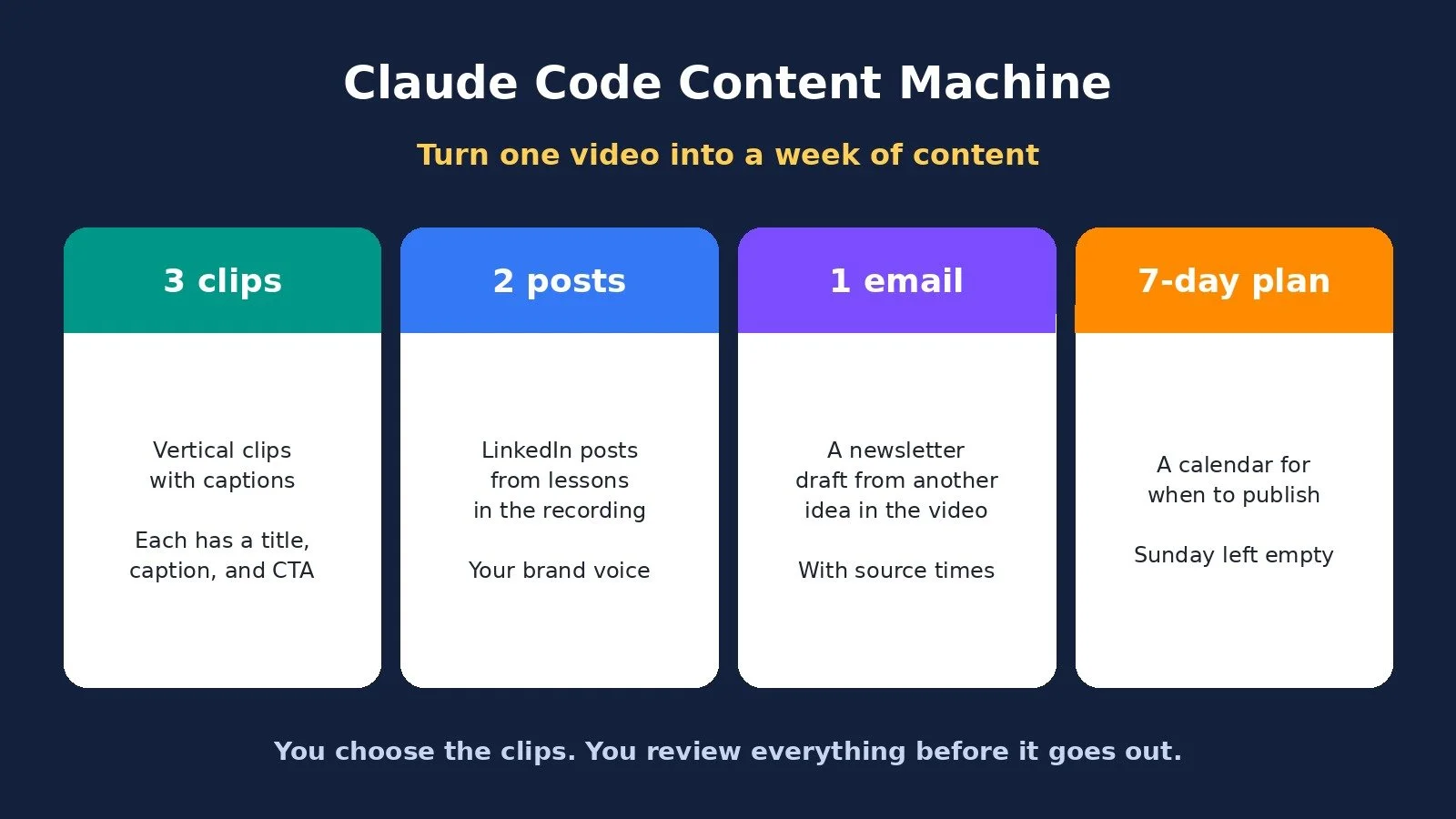
Here is what you have at the end: three vertical clips with captions, each with its own content pack (a title, post caption, and call to action). You also get two LinkedIn posts, one email, and a 7-day calendar for when to publish everything. You set it up with your writing style and your preferences for how the clips should look.
I am not attaching files to this post. The starter folder, the full skill file, and an audit checklist are in the video description and the pinned comment, including this prompt guide and workflow templates. Once it is set up, you can run it again with a new video. You choose the moments that become clips, and you review the finished content before you publish.
Claude Code Tutorial: The Short Answer
This Claude Code tutorial walks through a reusable content workflow. Whisper transcribes the video on your computer, Claude picks clip-worthy moments and writes the posts, and FFmpeg cuts vertical captioned clips. You approve three moments, review every file, and get a 7-day calendar. The workflow helps you get more out of a useful recording. It cannot predict which clip will go viral, and you still decide what goes out.
How the Workflow Is Built
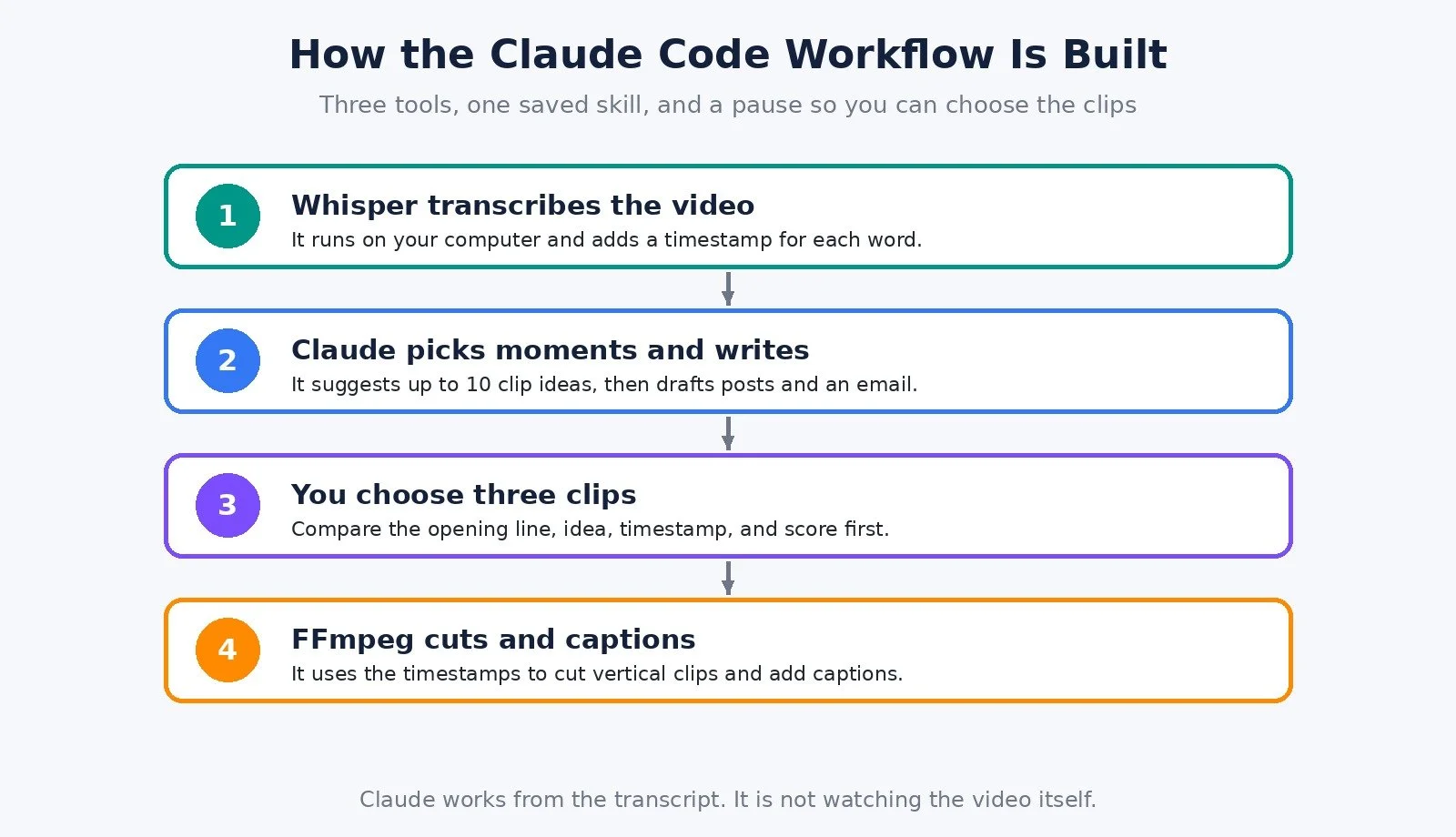
I am using three tools, and Claude Code coordinates the process.
First, Whisper turns the video's audio into a transcript with word-level timestamps, so there is an estimated time for each word. Claude reads that transcript and looks for moments that could work as stand-alone clips: a useful tip, a clear explanation, or a lesson someone can apply. In this workflow, Claude is working from the transcript. It is not watching the video itself.
It gives you up to 10 moments to choose from. You approve three, and those become your clips. Other ideas from the recording become your LinkedIn posts and email.
Then Claude uses those timestamps to tell FFmpeg where to cut. FFmpeg handles the video processing: cutting the clips, putting them into a vertical layout, and adding captions.
So Whisper creates the transcript, Claude selects and writes the content, and FFmpeg produces the clips.
If you have used Claude in other parts of the business, this is the same model with a saved, repeatable process. I have also used Claude to automate Instagram DMs and to find and email LinkedIn leads. Those are different jobs. This one is about getting more content out of a video you already shot.
I also use Claude for a sales job: follow-ups and pipeline analysis with Streak in Gmail.
Step 1: Folder Setup and a Quick Test
Before you process a full video, the starter folder includes setup instructions for Mac and Windows. The setup checks that Whisper and FFmpeg are installed and runs a small test. Once it can transcribe a sample and produce a captioned clip, you are ready to build the workflow.
Start with a longer video where you are on camera explaining something, and make sure the audio is clear. It can be raw footage or an edited video. Just have the file saved on your computer.
Start with a project folder. I called mine Content Machine. Inside it are three main folders:
Input: where you put your video
Brand: a document with your writing style and visual preferences
Output: starts empty, and that is where the finished content goes
There is also a hidden folder path where the instructions for this workflow are saved. The starter folder already includes this. Keep the path and file name as they are, because that is how Claude Code finds the skills it is going to use.
Open the entire Content Machine folder in Claude Code and you are ready for the next step: telling it how your content should look and sound.
Step 2: Brand Voice and Visual Rules
Inside the brand folder, open the document called brand voice. I put four things in here.
Your audience. For mine, I wrote entrepreneurs who want practical ways to use AI and automation in their business.
Writing rules. Things like using plain English, leading with the result, and keeping the writing clear and conversational. I also tell it to never invent facts, quotes, numbers, prices, or dates.
Visual preferences for the clips. That includes the vertical layout, caption font, size, colors, and placement, along with the safe area and how words should be highlighted. That gives the workflow a consistent style each time it creates a clip.
Five examples of content you have written or personally approved. These give Claude something concrete to work from. It can see how you open a post, explain an idea, and phrase a call to action, instead of trying to interpret a general instruction like "sound conversational."
Choose examples that represent how you want the finished content to read, because you will use the same file across future videos.
Step 3: Save the Process as a Claude Code Skill
Claude Code lets you save a set of instructions as a skill so you can reuse the process without pasting a long prompt every time. I called this skill content week, and I saved the instructions in a skill.md file.
Those instructions define what it should create, when it needs your approval, and what it should check before calling something finished.
Two instructions matter a lot for the clips. I tell it to start where the sentence starts, so the clip opens with a complete thought. Then I ask it to check the first and last words after rendering, so it can catch cuts that remove part of a word. That is why we included word-level timestamps earlier. They help place the cuts, and the check afterward helps catch mistakes.
I am giving it specific things it can check. An instruction like "make it engaging" does not tell it whether a sentence was cut off or whether the captions match your style.
The full skill file is linked in the workflow templates, so you can use these exact instructions.
Step 4: Run It and Choose Your Clips
Put your video into input, open the Content Machine project in Claude Code, and type `/content week` to start the skill.
It creates a transcript first, then builds a short list of up to 10 moments that could work on their own. I sped this up in the video, but you can see the actual processing time on screen.
Once the short list is ready, it pauses for you to choose the clips. For each moment, you get an opening line, the idea, the source timestamp, and an explanation of its score.
For me, this is the most important part of the workflow. Finding the moments worth sharing takes time, especially with a longer recording. Here I can compare the options in one place and choose what I want to use. I picked three.
Now it can render the clips and create the rest of the content.
Step 5: Review the Clips, Posts, Email, and Calendar
Look at the first clip. It should open at the start of a sentence, and the captions should already be on the video. Then check it against the original. The content pack includes the source timestamp, so I can go straight to that part of the recording. I check that the words match and that the beginning and the end have not been cut off. I do this for each clip before posting it.
Each of the other clips has its own content pack too: title, post caption, call to action, source timestamp, and review notes, together, so you have what you need to review and prepare that clip.
Then look at the written pieces from the same recording. In my run, the first LinkedIn post took a lesson from the video and built a narrative around it, using the source material without making up a personal story. The second took a different lesson and turned it into a list. The email developed another useful idea from the recording.
This is where I check how well it followed the brand voice file. Does the opening sound like something I would say? Is the wording natural? Has it kept the meaning of the original idea? Each written file also has a source section for review, with timestamps you can use to check factual claims against the recording.
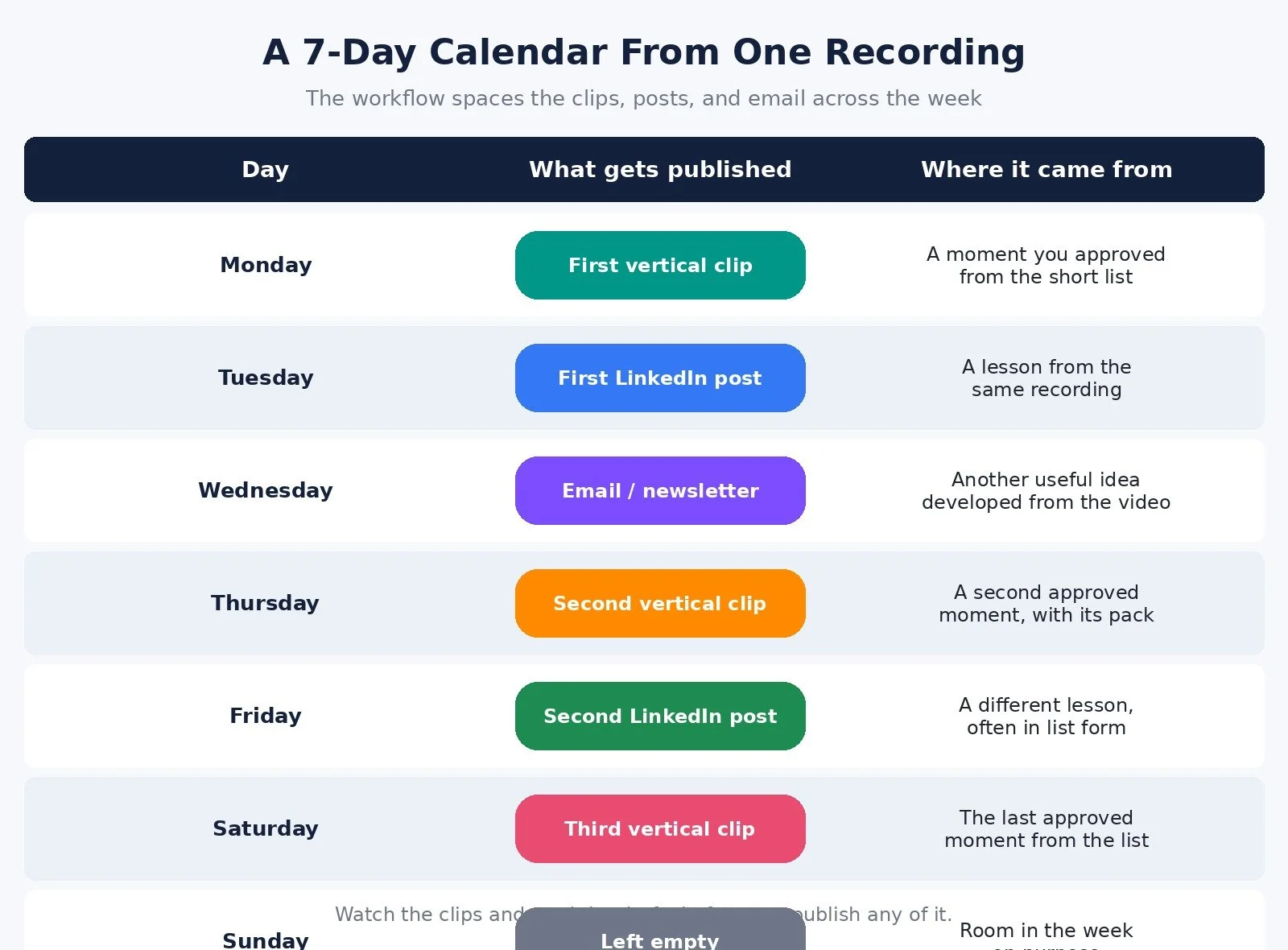
Finally, it organizes the content across 7 days:
Monday: the first clip
Tuesday: the first LinkedIn post
Wednesday: the email
Thursday: the second clip
Friday: the second LinkedIn post
Saturday: the third clip
Sunday: left empty
That is three clips, three content packs, two LinkedIn posts, one email, and the calendar. Ten files from the same recording, ready to review.
Step 6: Reuse the Setup With the Next Video
I started a fresh Claude Code session and gave it a completely different recording. This video had a different subject and a different length. I kept the brand voice file, the same skill, and the same folder structure.
It created a new transcript and a new short list from this recording. I chose three moments again and let it continue. I got new clips and content packs, plus a new post, email, and calendar.
There are three things I check when I review a new batch:
All the video files open, and the first and last spoken words match the source recording.
The source timestamps point to this new video.
The content packs, posts, email, and calendar all use the new subject. I check that no names, claims, or examples have carried over from the previous run.
Everything in that second run was based on the new recording. I reused the setup, selected the clips, and reviewed the results without rebuilding the workflow. That is what makes this useful for content you are producing regularly.
Claude Code Pricing, Speed, and Quality (Checked November 12, 2026)
A few practical things to keep in mind, including what I said in the video and what official pricing looks like today.
Whisper and FFmpeg run on your computer, so neither tool charges you for each minute of video you process. Claude usage still depends on your plan and how much work you are asking it to do.
I did not quote a cost per video in the walkthrough, and I am not going to invent one. On anthropic.com/pricing (which redirects to claude.com/pricing) today, Claude’s individual plans are:
Free: $0, with limited usage
Pro: $20 per month if billed monthly, or $17 per month with annual billing ($200 billed up front)
Max: $100 per month, or $200 per month for the higher Max/Ultra tier shown on the page
What I care about most is how much work this takes off my plate each week. Having the clips and written drafts together gives me something concrete to review, and I can reuse the setup with the next video. That is where the value is for me.
You still need useful ideas in the original recording, whether that is an explanation, an example, or a lesson worth sharing. The workflow helps you get more content out of that material. It cannot predict which clip will go viral.
Before publishing, watch the clips and read the drafts. Check the cuts, captions, framing, and wording. If something is off, ask for a revision and check it again. You still decide what goes out.
Who This Is For
A good fit if:
You already record longer videos and want more than one use out of them
You are willing to install Whisper and FFmpeg and run a short test first
You will fill in a real brand voice file, including examples you actually wrote
You will choose the clips and review every file before publishing
Look at other options if:
You do not have a useful recording to start from. This workflow cannot invent a good video for you.
You want a one click tool that posts without review. That is not what I built here.
What Worked and What to Watch
What worked. The pause to choose clips is the part I value most. The content packs keep the timestamp next to the title, caption, and CTA, so review is fast. The second video reused the same skill and brand file without rebuilding anything. Sunday is left empty on purpose, which keeps the week from being packed end to end.
What to watch. Claude is reading a transcript, not watching the footage, so a visually interesting moment with thin audio may not make the short list. Captions and cuts still need a human check, especially the first and last words. And you have to confirm that a new run did not reuse names or claims from the previous video.
FAQ
What is this Claude Code tutorial actually setting up?
A reusable skill called content week. You drop a video in the input folder, run the skill, approve three clip moments, and review the clips, posts, email, and 7 day calendar it creates.
Do I have to be a developer to follow this Claude Code tutorial?
You need to install Whisper and FFmpeg, open a project folder in Claude Code, and edit a brand voice file. The starter folder includes setup instructions and a test for Mac and Windows. You are not writing the clipping logic from scratch.
Does this cost money for each video?
Whisper and FFmpeg run locally, so they do not charge per minute. Claude usage depends on your plan and the amount of work in each run. I listed official Claude plan prices above.
Will this make a clip go viral?
No. I said that in the video. The workflow helps you share useful material in more places. It cannot predict performance.
Where do I get the starter folder and skill file?
They are in the pinned comment and in the prompt guide and workflow templates linked in the video description. This blog post does not include downloadable files.
What to Do Next
Start with a video you have already recorded, and add your writing examples to the brand voice file.
Get the starter folder, skill file, and audit checklist, then run the setup test for Whisper and FFmpeg.
Run the skill, choose your three clips, and review every file before you publish.
Browse Best Tools for the rest of the stack I recommend.
If you want help setting up AI and automation in your business, I take on projects through my services.
Make more. Spend less. Work less. Record the useful video once, then let a reviewed workflow help you share it all week.