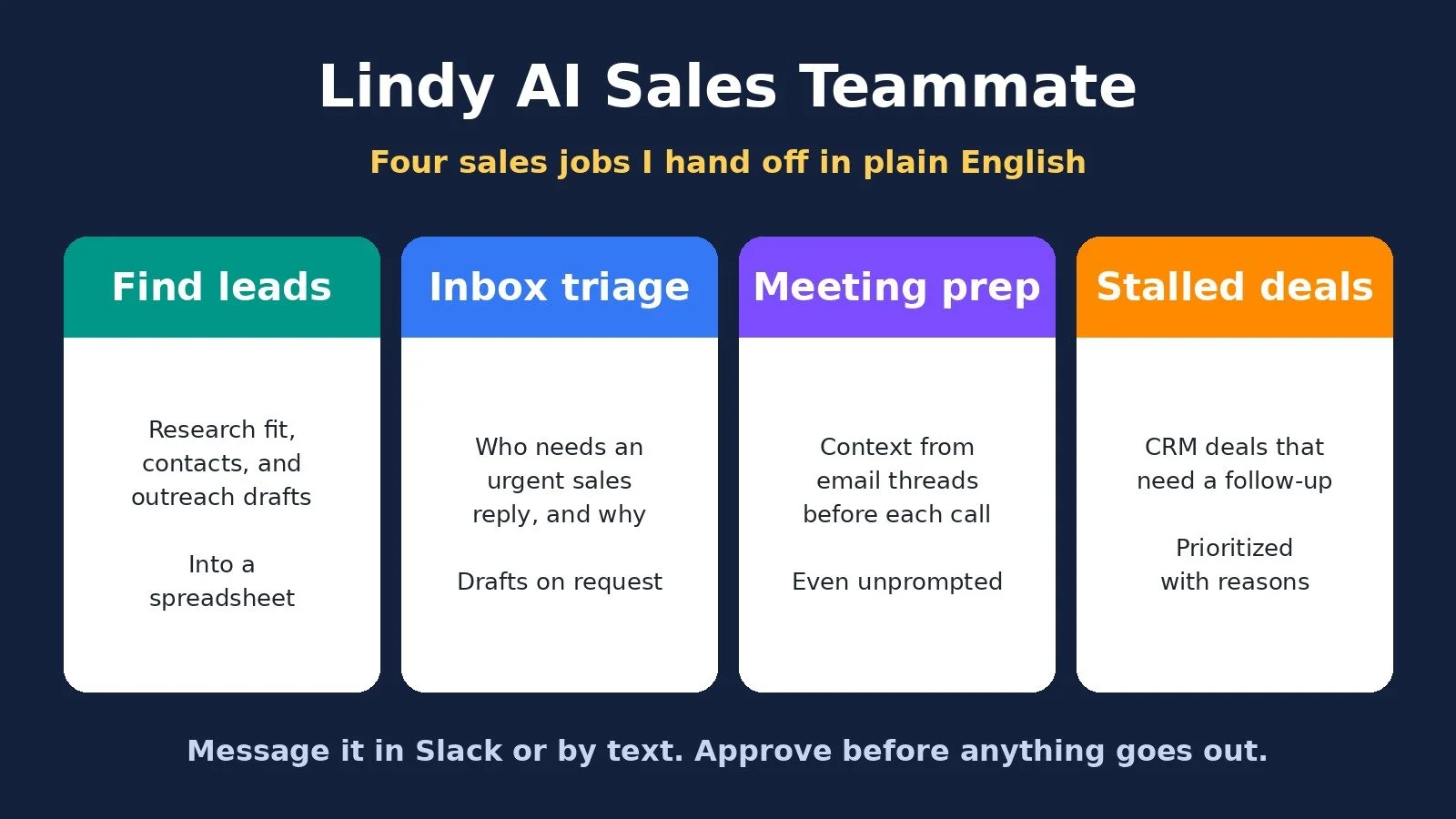
I set up an AI sales teammate that helps me with my whole sales process. It finds and researches new leads, drafts outreach, tells me which emails need a reply, preps me for sales calls, and flags deals that have gone quiet.
I talk to it through Slack and text, just like a real member of my team. It took a few minutes to get running. This is not a complex automation that needs a massive setup or a separate computer.
The tool is Lindy AI. This post walks through exactly what I showed in my video: how I set it up, the four sales tasks I gave it, where I kept myself in the loop, and who I think it is for. You can watch the full video below.
Lindy AI: The Short Answer
Lindy is an AI teammate you message over Slack, text, or the browser, in plain English. It connects to the apps you already use, like Gmail, your calendar, and your CRM, and it can research leads, draft emails, triage your inbox, prep you for meetings, and run tasks on a schedule. What surprised me most is that it can also be proactive and message you first.
What Lindy Is
Lindy is an AI teammate that can help with almost any task in your business. You message it the same way you would message a person on your team, and it responds and does the work.
There are three ways to talk to it:
Slack, which is what I use and what Lindy works best with
Text messages on your phone
The Lindy dashboard in your browser
Lindy can help with a lot of different jobs, but in this post I am focusing on sales, using it as an AI sales agent, because sales is one of the most important parts of any business.
How I Set Up Lindy
Setup took a few minutes:
Create a free account and sign in with your email or one of the listed services. I used Google.
Connect Slack. Hit continue to Slack and log in. It takes a few seconds, and Lindy shows up inside your Slack workspace.
Connect text messages (optional). Scan the QR code with your phone. Lindy texts you a code, and once you reply, it is verified.
Connect your Google or Microsoft account so Lindy can work in the apps you already use, like Gmail and your calendar.
After that, you land on the Lindy dashboard. You can chat with Lindy there, but there is not much else you need to do in it. The integrations page is worth a quick look. When I recorded, it listed more than 1,000 apps, through direct integrations and MCP. You do not have to connect everything up front. If Lindy needs access to a tool, like Notion or Google Drive, it asks, and you usually just log in.
Use Case 1: Finding and Researching New Leads
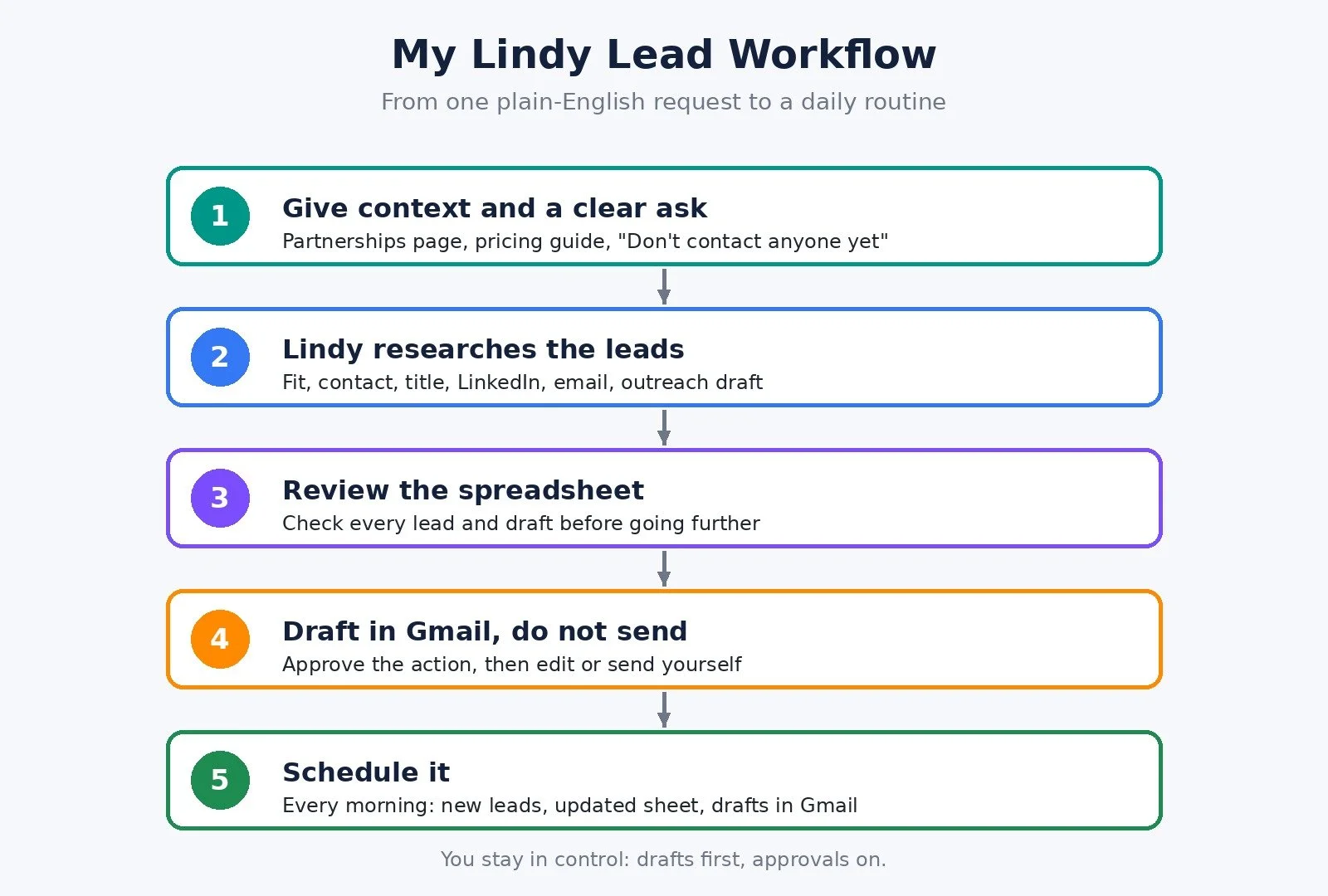
I run a YouTube channel, and one of my real sales jobs is finding software sponsors. So I gave Lindy that exact task in plain English, something like this:
“I want to find new software sponsors for my YouTube channel. Find 10 companies that are a strong fit, research them, find the best person to contact, their email address, their LinkedIn profiles, and draft personalized outreach for each of them. Put everything in a spreadsheet and send it back here for me to review. Don’t contact anyone yet.”
I also gave it my partnerships page and my pricing guide, so it understood my business and my offers. You can give Lindy whatever context helps it understand your audience, what you sell, and your offers.
A few things I noticed while it worked:
You can run several tasks at once. Each one gets its own thread, which is why I like using Slack.
It asks for permission. Every so often Lindy asks to use a tool or take an action. You can approve it once, or let it always do that action. Whatever you are comfortable with.
It took a few minutes. Then it came back and said the job was done.
The spreadsheet had software brands that were relevant to my channel, why I should reach out to each one, the contact and their title, LinkedIn profiles, emails, email status, and an outreach draft. It even had some suggestions on pricing. The titles made sense for the people who usually work with me. I asked for 10, but you could ask for more.
Drafting Outreach in Gmail
If I am happy with the drafts, Lindy can put them in Gmail for me. I asked it to choose one lead and draft an email in Gmail, but not send anything, because I want to check every email before it goes out. You could just as easily ask it to draft all of them.
Lindy asked for permission, and I approved it. When I opened my Gmail drafts, the email was there, addressed to a contact at one of the software brands on the list, and it made sense.
From there, you have options. You can edit the draft yourself and send it, tell Lindy in Slack what to change, or even tell Lindy to send it for you.
Putting lead generation on a schedule
Once you know what kind of leads you want and how you want to run this, you can schedule it. I told Lindy something like: "Every morning at 9:00 a.m., find me 10 new leads, update the sheet, and leave the outreach as drafts in Gmail." The routine went live, and now it finds 10 new leads and creates the draft emails every day.
Use Case 2: Inbox Triage for Urgent Sales Replies
Once you have leads, you need to stay on top of them. I asked Lindy:
“Look at my inbox and tell me who I need to reply to that’s urgent from a sales perspective.”
Because my email was already connected, it went into Gmail and came back quickly. It gave me nine contacts and emails I needed to respond to, with a proposed reply and the reason each one mattered, so I could follow up right away. It also offered to draft the replies. Like the lead search, you can put this on a schedule.
Use Case 3: Prepping for Sales Meetings
When you have back-to-back calls, it is easy to walk into a meeting a little unprepared, or forget the context and where you want the call to go. You can ask Lindy something like: "Look at my calendar and help me prep for sales meetings I have today. Give me the relevant context from my emails and anything important I should know before each meeting."
Here is the part that surprised me. I did not even have to ask. As soon as I connected my calendar, Lindy saw I had a meeting that day, went through the email thread with that person, and sent me a summary on its own. Then I asked, "Tell me about this company I'm meeting. What do they do again?" It did the research and pulled it all up.
That is what makes Lindy different from a lot of AI tools I have used. Most are reactive. You give instructions and they respond. Here, Lindy decided on its own to look at my calendar and fill me in.
Use Case 4: Finding Stalled Deals in My CRM
The last task was keeping my most important deals on track. I use Streak CRM inside Gmail, and if you want to see how I run my pipeline there, I have a full Streak CRM tutorial. Lindy connects to quite a few CRMs, so check that yours is supported.
I asked something like:
“Look at my CRM and tell me which deals in the qualifying, negotiating, or contract stage look stalled and need a follow-up. Prioritize the most important ones and tell me why each one needs attention.”
The first time Lindy connects to your CRM, it prompts you to connect it. Then it came back with a list of deals I should follow up on, along with the stage each one was at. You can also have Lindy watch for deals that stall and give you a heads-up, or run the same report on a regular basis.
Where I Keep Myself in the Loop
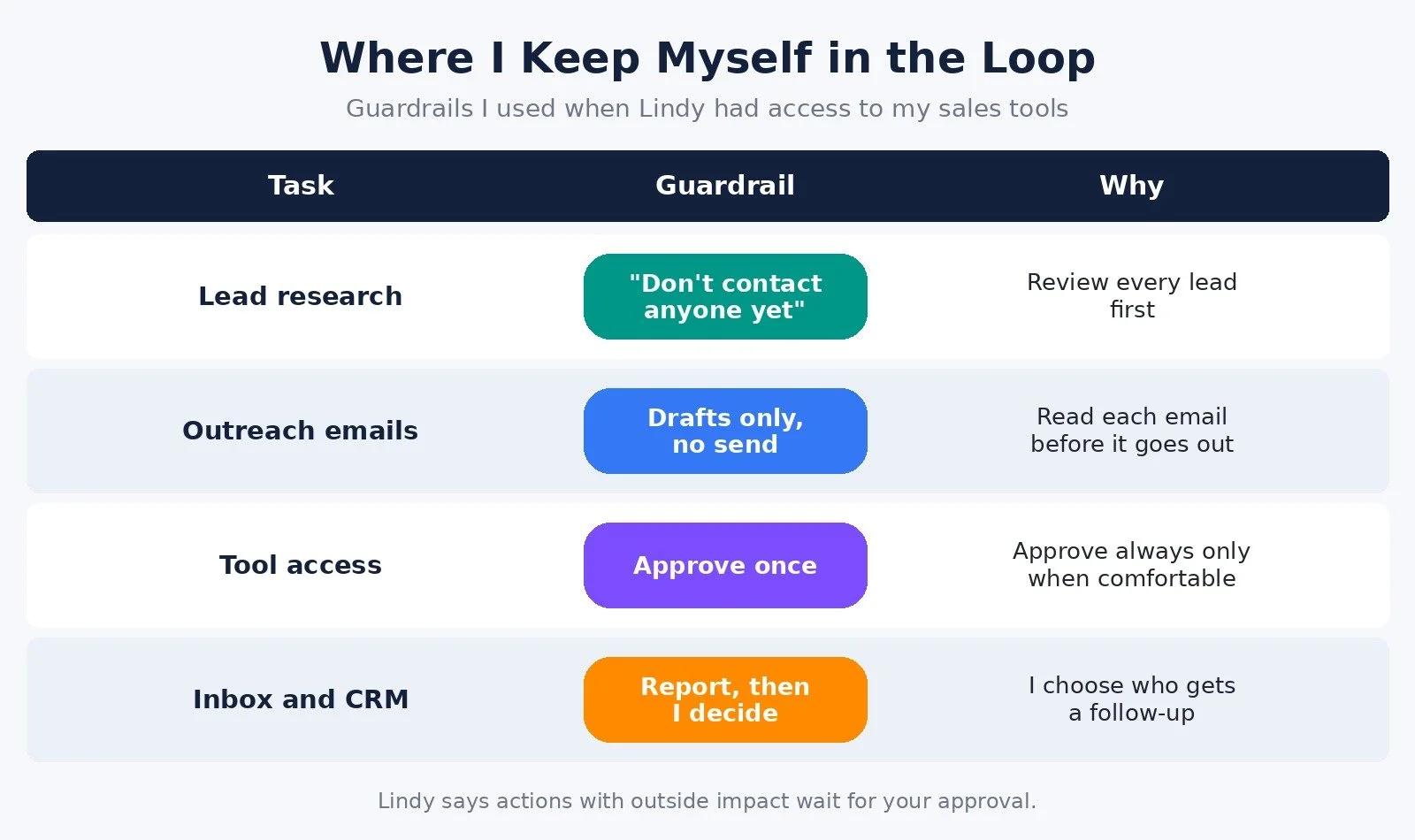
Giving an AI access to your inbox and CRM is a real decision, so here is how I handled it in the video:
I told it not to contact anyone until I had reviewed the leads.
I had it draft emails, not send them, so I could read every one first.
I approved permissions as they came up, using approve once until I was comfortable.
I blurred client details when I showed results on screen, and you should treat that data with the same care.
Lindy's own pricing page also says that anything with outside impact, like sending an email, waits for your approval.
What Else Lindy Can Do in Sales
I showed four sales tasks, but you can hand Lindy a lot more. You could have it send intake forms, draft contracts, write the first draft of a proposal, update your CRM, or handle any other step in your process. You just tell it what you need in plain English and chat back and forth like you would with a colleague.
It is not limited to sales either. You can give Lindy jobs across almost any area of your business. If you are still getting your head around AI agents in general, my post on AI agents for solopreneurs covers the bigger picture.
Lindy Pricing (Checked November 11, 2026)
These details come from lindy.ai/pricing, checked on November 11, 2026. Confirm on the official page before you pay, because plans change.
Free: $0 / $50 in credits that last 7 days, no credit card required
Team: From $49.99 per user per month / 5,000 credits per month, with larger credit tiers available
Enterprise: Custom / Custom credits and billing, plus security and compliance features
My link's offer. The landing page for my link, checked the same day, shows $100 in free credits with no credit card required, instead of the standard $50. My video description also mentions the 7-day free trial.
How credits work. Lindy says credits measure the work it does, and bigger jobs use more. Monthly credits refresh each billing cycle and do not roll over. If you run out, Lindy pauses credit-using actions instead of sending a surprise bill, and you can top up at $10 per 1,000 credits.
Since research-heavy jobs like the lead search use more credits than a quick inbox check, try your real tasks during the free credits and see what they use before you pick a plan.
Who Lindy Is For
Based on how I use it, Lindy fits best if:
You handle your own sales and want help with prospecting, follow-ups, and deal tracking without hiring.
You already work in Slack, Gmail or Microsoft, and a CRM, so Lindy can plug into tools you use every day.
You want an assistant that can reach out first, with meeting prep, reminders, and heads-ups, not only answers when you ask.
You are willing to review its work, especially anything that goes out to a prospect.
It is probably not the right fit if you want something that runs your outreach with zero oversight. I would not recommend that with any AI tool.
My Verdict
What impressed me most is that Lindy is not always waiting for me to prompt it. A lot of AI still feels reactive. You ask for something, it does it, and then it waits again. Lindy can be proactive. You might get a text reminding you about something, pointing out an opportunity, prepping you for a meeting, or telling you there is something you need to deal with.
You saw that with my sales call. I did not ask it to prepare. It saw the meeting, found the relevant conversation, and reached out to me. That is what makes it feel like an actual teammate. If I need Lindy, I message it. If Lindy thinks I need something, it messages me.
If you want to try it on your own sales process, you can start your Lindy free trial here.
FAQ
What is Lindy AI?
Lindy is an AI teammate you message over Slack, text, or the browser. It connects to your apps and can research, draft, triage, prep, and run scheduled routines in plain English.
Can Lindy send emails for me?
Yes, if you tell it to, after you approve the action. In my setup, I had Lindy create drafts in Gmail so I could review each one before anything went out.
How much is Lindy AI?
Lindy has a free start. On November 11, 2026, its pricing page listed $50 in free credits that last 7 days, with no credit card required. The landing page for my link showed $100 in free credits. Paid plans start at $49.99 per user per month for 5,000 credits.
Is Lindy AI good?
For my sales tasks, yes. What impressed me most is that it can be proactive, like prepping me for a sales call I did not ask about. I still review its work, especially anything that goes out to a prospect, and I would not run outreach with zero oversight on any AI tool.
Does Lindy work with my CRM?
Lindy connects to quite a few CRMs. I used it with Streak. Check that your CRM is supported, and Lindy will prompt you to connect it the first time it needs access.
What to Do Next
Write down the sales tasks that eat your week: prospecting, follow-ups, meeting prep, and deal tracking.
Start Lindy's free trial, connect Slack and your Google or Microsoft account, and give it one real task.
Tell it not to contact anyone until you review the results, then schedule the tasks that work.
Browse Best Tools for the rest of the stack I recommend.
If you want help designing AI agents and automations around your sales process, I take on automation strategy projects through my services.
Disclosure: my video on Lindy was sponsored by Lindy, and the Lindy links in this post are affiliate links. If you sign up through them I may earn a commission at no extra cost to you. Everything here is based on what I showed in the video.
Make more. Spend less. Work less. Let your AI teammate handle the busywork, and keep your hands on the deals that matter.