Cold email automation is how I keep a pipeline of new conversations going without spending my week prospecting, writing emails, and chasing follow-ups. Done properly, the system finds leads, researches them, sends personalized outreach, follows up, and can even book meetings for you. Once it is set up, the whole process can run 100% on autopilot.
The hard part has always been the setup. Doing cold email properly usually means five or six specialized tools: sending infrastructure, lead finding, verification, outreach, and follow-ups. That is a lot of work before the first campaign goes out, and a lot to keep running.
After testing a bunch of different approaches, I found a tool that puts all of that in one place, with AI agents that can run the outbound process for you. The setup in this post is the one I use in Instantly: sending infrastructure, an AI Sales Agent that finds customers and handles outreach, and an AI Reply Agent that manages replies and can help book meetings.
Cold Email Automation: The Short Answer
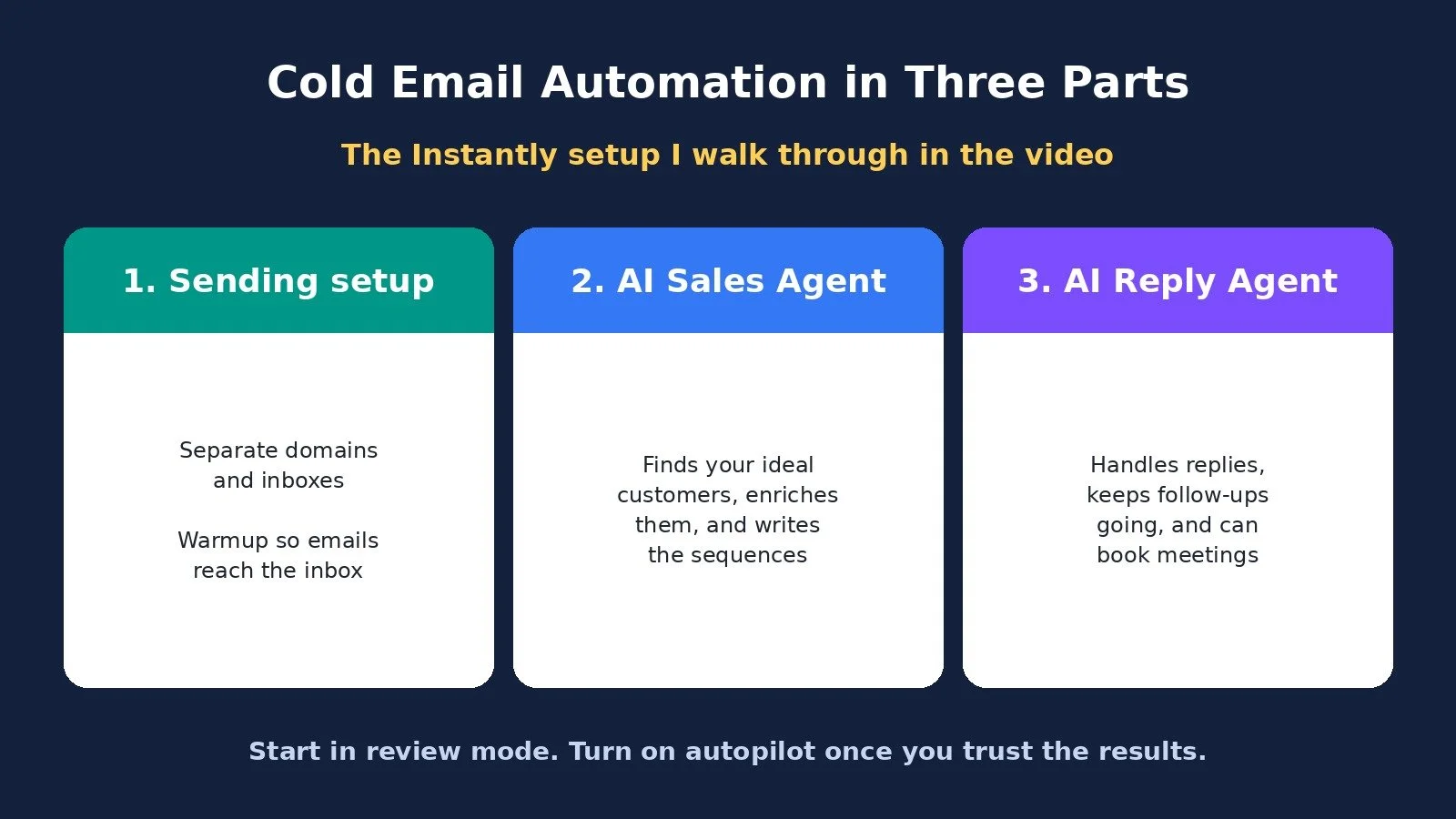
The simplest cold email automation I have found uses Instantly in three parts. First you set up sending domains and inboxes that are separate from your main business email, and you warm them up. Then an AI Sales Agent finds people who fit your ideal customer and writes the outreach sequences. A second AI Reply Agent handles replies in a unified inbox and can book meetings if you connect your calendar. You can approve drafts yourself, or turn autopilot on once you trust the results. You can start with a free trial and 1,000 credits, but the full system I show is not all included in the trial.
Set Up Instantly
The only tool I use for this is Instantly. Click the link, start a free trial, and sign up with Google, Apple, or your email. After a short onboarding, enter your website. Instantly starts training itself on your business, and you get 1,000 free credits. In the dashboard, you can see those credits right away.
I want to be completely transparent: you will not be able to do everything I show with the free trial. The 1,000 credits are enough to try finding leads, but some of the more advanced features and automation require a paid plan. I walk through how everything works first, then I go through the pricing and which features sit on which plan, so you can decide what makes sense for you.
Why Your Sending Setup Comes First
Before you find leads or send anything, there is something important to understand about cold email, especially if you have never done it.
Do not send cold email from your main business domain. You are reaching out to people who do not know you, so those emails are more likely to get marked as spam. The last thing you want is to damage the reputation of the domain you use to communicate with actual customers. Use separate domains and email accounts for outreach.
You also cannot send hundreds of emails from a single account. A good rule of thumb is a maximum of 25 cold emails per day, per account. If you want to send a few hundred emails a day, you will need multiple accounts across different domains.
A brand-new inbox has no sending reputation. You build that through email warmup, which typically takes 2 to 3 weeks. That means simulating conversations and positive engagement so providers like Google and Microsoft start treating the account as trustworthy. The higher your reputation, the more likely the email is to land in the inbox. You can have a strong offer, the right leads, and well-written emails, and still get nowhere if those emails land in spam or the Promotions tab.
That is why I consider sending infrastructure one of the most complicated parts of cold email. Normally you would register multiple domains, create inboxes, configure everything, run a separate warmup service, and watch the accounts. If one starts having deliverability problems, you may need to replace it. That is a lot of work before you have sent a single campaign. Instantly handles most of this automatically.
To add sending accounts, go to Email Accounts, then add or buy accounts. You have a few options.
Pre-warmed accounts. These are already warmed up, so you can start sending right away. You pick a domain from a list, and each one comes with five email addresses. In the walkthrough, those were five Google inboxes under that domain, and you can see the total price before you buy. Enter your actual website as the forwarding domain, in case someone tries to pull the domain up. The advantage is speed. The tradeoff is less control over the domain name.
Airmail or done-for-you Google accounts. These work the same way, except you can type a domain that is closer to your business, like solopreneur.com or mysolopreneur.org, instead of using a domain that looks unrelated. You still get five email addresses, and this option is slightly cheaper. The disadvantage is that you will want to wait two to three weeks so the domains can warm up if you want maximum deliverability.
A domain you already own. If you already have email addresses you send from, you can connect those and go through the steps.
In the video I already had a bunch of accounts purchased. You can see a health score for each domain, so you know how they are doing. If one starts dipping, it may be time to retire it. Auto warmup was on for all of them. If you click into an account and open warmup, you can see Instantly running it continuously, which is how you keep reputation and deliverability high. You can also see how many emails are being sent daily per domain, which is why high volume means multiple domains.
Find Leads Yourself, or Let an AI Sales Agent Do It
Once the sending setup is in place, you are ready to reach out. Instantly also lets you do this manually with Lead Finder. You can filter by titles, location, industry, and so on.
I only show that briefly, because the point of this setup is to automate it with AI agents so you do not have to do the sourcing and campaign building yourself. Instantly has a number of agents you can create. The one we want first is the AI Sales Agent.
Build the AI Sales Agent
Go to Agents, then Create Agent, and choose AI Sales Agent. That opens the agent builder.
You get a few options. Quick setup is if you want to give it your website and let it make the decisions. Dynamic setup lets you build it step by step. What I like to do is answer in chat, and explain in plain English what I want.
In the video, the example was an automation agency targeting real estate agents in New York. The prompt I gave it was along these lines: I want to target real estate agents in New York and help them automate their lead outreach, manage incoming leads, and automate their marketing. I am looking for real estate agents who work in residential real estate. You can add something like "You can learn more about my services here," paste in your website, or attach documents, then hit enter.
It goes off and creates a brief: a summary of what it understood, who it is trying to reach, what to offer, and some guidance it has written for itself. Review that and refine it. In my run, the brief made sense overall, but the competitors were off. It had listed software providers that enable automation, not agencies that actually compete with an automation services business. I corrected it with two example agencies, and it updated the brief. Keep going back and forth until you are happy with the scope, then hit Create Agent.
When I opened the agent, it had already found 10 prospects to review. Click into them, make sure they make sense, and approve the ones you want. Next, it starts drafting the emails and building the campaign. The drafts I opened were clearly personalized. One talked about deals across central and south Harlem. Another was about residential buyers and sellers. Each email was different, based on the information it found about that person and their goals. You can tweak the drafts, then approve them.
In Leads, you will see the new people, their website, their LinkedIn, and a bunch of other information, plus the initial email and follow-ups one, two, and three. In this run, that was a four-email campaign, personalized for each person. You can click in and update the contact info or the emails.
Before you let it run on its own, open a few more settings.
Memory. This shows what it has learned about your company. In my walkthrough, the business details made sense at a glance. You can add competitors, add offers, and refine how it describes your work.
Customer profiles. The profile was tailored to the audience. For the real estate example, the problems, benefits, and unique selling proposition were relevant to real estate agents, so the pitch could speak to that audience's goals and pain points. You can refine that too.
Guidance. Add rules for what you want it to do, say, and not say.
Settings. Full autopilot mode will source leads, draft emails, and run without your approval. I recommend you run it semi-manually first, get the outputs where you like them, and only then turn autopilot on. You can still have it find leads automatically, without approving each one, while you keep control of the rest.
Prioritize leads with buying signals. This looks for a good time to reach out, based on activity such as social activity, buying intent, or growth signals. The idea is to prioritize people who seem more likely to need your services, rather than a fully cold list, so you get better response rates and higher quality leads.
Accounts to use. These are the sending accounts you set up earlier. You can also set scheduling limits here. Keep in mind the 25-emails-per-account rule, depending on how many accounts you have. There are deliverability options too, and you can integrate Slack if you want notifications.
Build the AI Reply Agent
Once the Sales Agent can find qualified leads and reach out, you still need help with the responses. For that, create an inbound Reply Agent.
Go back to the agent chat you just used (Instantly AI). In the walkthrough, it had already recommended creating the reply agent. Use the recommended option, which reuses what you already trained into the first agent, so you do not have to duplicate that work. Approve it, then open the new agent and go to AI Agent Configuration.
The first option is full autopilot, where it sends the emails, handles the responses, and can even book meetings. I recommend you turn that on only after you have configured the agent and you are comfortable with how it behaves. Instantly recommends the same thing: customize it first, then go full auto. Full autopilot for this agent requires the Hypergrowth plan. I cover the plans in the next section.
Either way, the agent can handle follow-ups. If someone replies and then goes quiet, it follows up so the thread does not go cold.
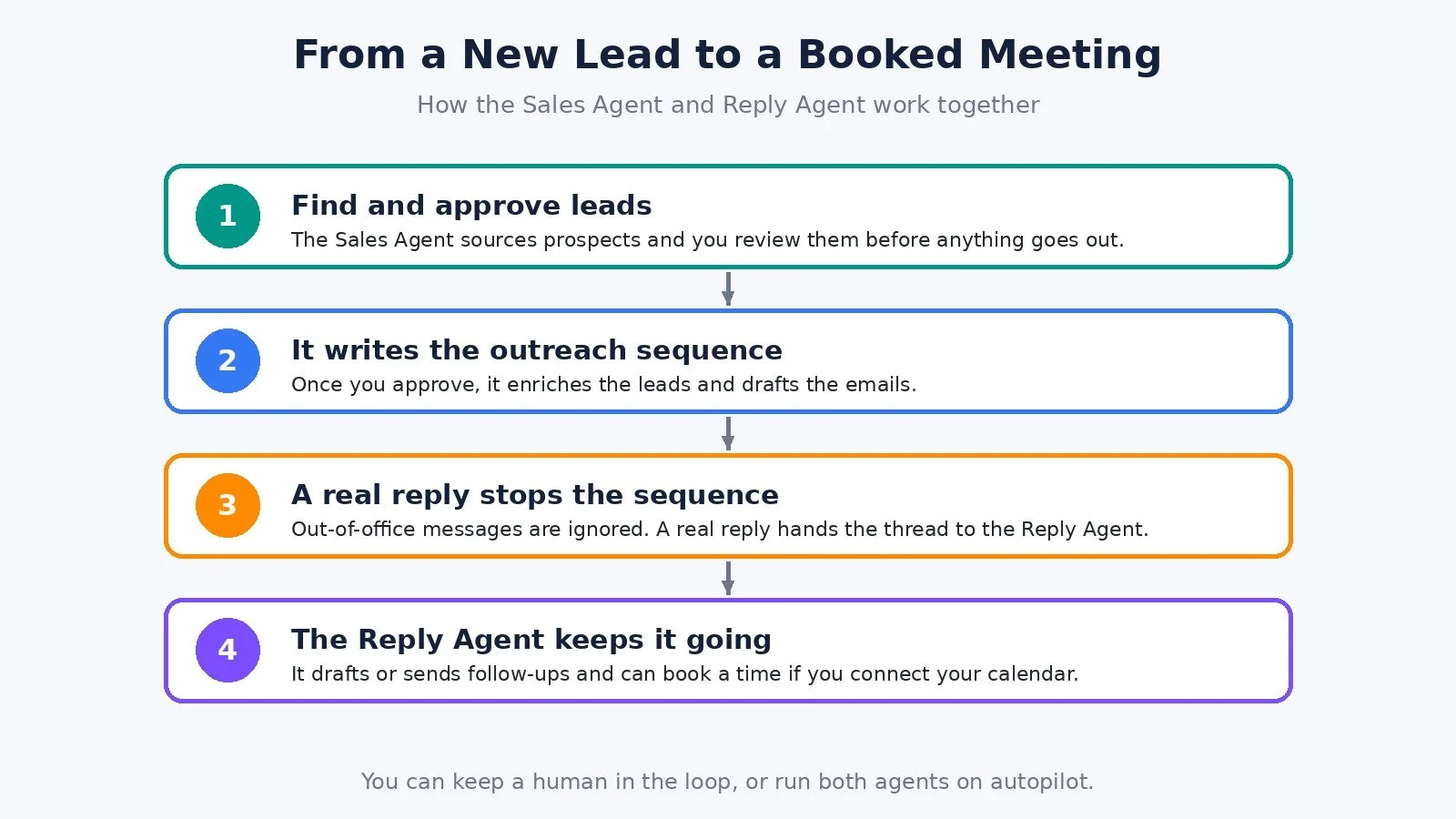
Here is how the two agents work together. The Sales Agent emails people to get a response. As soon as they reply, and it is not an out-of-office or other automated email (it is smart enough to tell the difference), the Reply Agent takes over. The Sales Agent does not keep finishing the original sequence, which would be annoying once the person has already written back.
All of those emails are routed to a unified inbox, across your agents and all the sending accounts you are running. If you have a dozen or 20 different email addresses, that is how you stay on top of them in one place. With autopilot on, the Reply Agent sends the responses for you. Without it, you review everything and approve and send it yourself. You can also tell it not to respond to out-of-office messages, and you can have it handle objections or negative replies.
The reply agent is assigned to the campaign you just created. In the walkthrough, that meant it was paired with the New York real estate outreach agent. I recommend you create a targeted outbound and reply agent pair for each audience, instead of one generalized agent that tries to do all of your outreach. I used dentists as the next example, and roofers after that. An agent that can speak to those specific pain points will be more effective.
Under Guidance, you can add notes on tone, response length, communication style, and any other instructions, just like the first agent. With the Slack integration, you can be notified when the agent needs help, or when a reply falls outside your guidelines and you want to be tagged in. And with the Calendly integration, the agent can help book meetings directly on your calendar. That is especially useful in full auto mode. As I said in the video, you could be waking up to new meetings popping up on your calendar, running on autopilot.
Instantly Pricing, the Free Trial, and What You Actually Need
Now that you have seen how it works, here is what you actually need in order to do all of this.
First, you need email inboxes to send your outreach. You can use your own existing accounts, and with the 14-day free trial you can connect up to two of them and send a limited number of emails. Or you can purchase new inboxes directly through Instantly. If you want the fully managed experience, that is the route I would take, because Instantly handles the account setup and warmup, and you can manage everything from one place. Just remember that those accounts are purchased separately from your subscription.
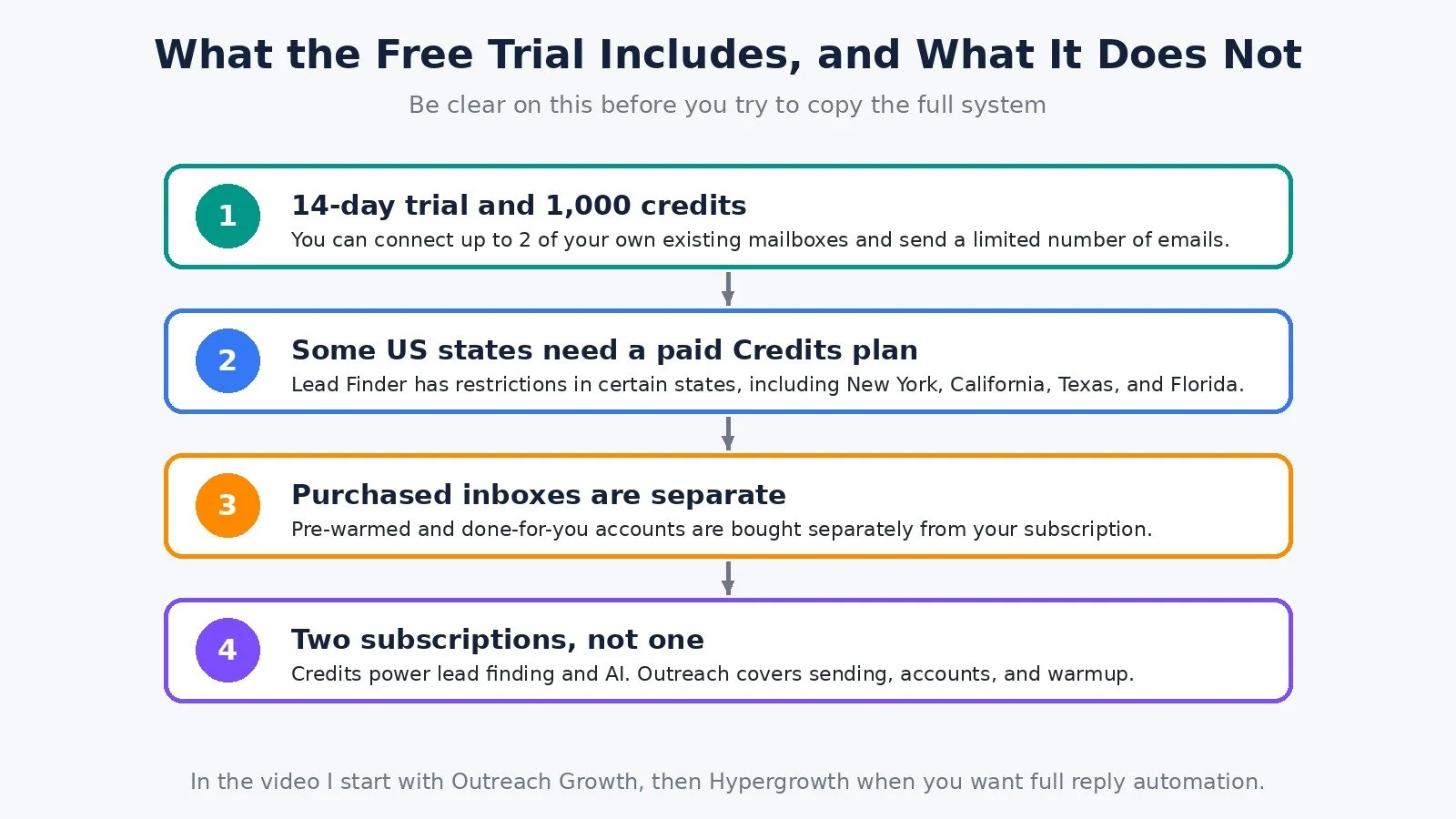
The subscriptions themselves come in two parts.
Instantly Credits are what you use to find leads, enrich contact information, and power the AI features. When you first sign up, you get 1,000 free credits to try Lead Finder, and you can use those to find and save leads during the trial. There are restrictions on certain US states, including New York, California, Texas, and Florida. For those locations, you need a paid Credits plan. In the video I said that if you want to keep using Lead Finder and the AI features beyond the trial, the Nano Credits plan starts at $9 per month. I checked Instantly's pricing page again on November 20, 2026, and Nano was not listed there. The Credits plans shown that day started at Growth Credits for $47 a month. Use the pricing page for the current list when you sign up.
Email Outreach covers sending campaigns, managing your email accounts, and warmup. The Growth plan starts at $47 per month, which matches what was on the pricing page on November 20, 2026. You can start there and run outreach semi-automatically: find leads, create campaigns, and manage outreach, while you handle more of the replies and follow-ups yourself.
If you want the full automation I demonstrated, including the AI Reply Agent responding automatically, replying through Unibox, and Slack notifications, you need the Hypergrowth Outreach plan. On the same pricing page, Hypergrowth is $107 a month. Whether that is worth it depends on how much outreach you are doing and how much time you want to spend managing it.
My recommendation is the same one I give in the video: start with the regular Growth plan if you are just getting started, get the outreach working, and upgrade to Hypergrowth when you are ready for the extra automation.
To help you get started, you can use the code SOLO20 for 20% off your first 3 months through my Instantly link.
What to Do Next
Start an Instantly free trial, complete the onboarding, and enter your website so you get the 1,000 free credits.
Set up sending accounts that are not on your main customer domain. On the trial, you can connect up to two existing mailboxes. If you buy pre-warmed or done-for-you inboxes, remember those are purchased separately from the subscription.
Create the AI Sales Agent in chat, give it a tight description of your customer, and approve the first batch of leads and email drafts yourself.
Create the Reply Agent from the recommended option, keep review mode on at first, and connect your calendar if you want it to book meetings.
Once the targeting and the tone look right, turn on autopilot and, if you need the full reply automation, move up to Hypergrowth.
Browse Best Tools for the rest of the stack I recommend.
One thing I have learned from running businesses for over 15 years is that no matter how well things are going, you are always thinking about next month. Where is the next customer coming from? How are you going to keep growing? That is why a consistent pipeline of new customers matters.
Cold outreach, when it is done right, is still one of the highest ROI and lowest cost ways to generate new business. Paid advertising can get expensive, and inbound content can take a long time to produce leads. Once you have been doing outreach consistently, you start to understand your numbers: how many prospects you need to reach, how many of those turn into booked meetings, and how many meetings you typically need to close a client. Then you can turn the tap up or down.
The work of finding leads, personalizing emails, following up, and managing conversations is what usually breaks that consistency. This setup automates most of that. You still have to take the meetings and close the deals. You just do not have to run the whole outbound process by hand.
Start with one target audience, get the targeting and the emails working, and scale from there. You can add separate agent pairs as you grow. If you also want to add video to cold outreach, I have a walkthrough of personalized video for cold email.
If you want help setting up AI and automation in your business, I take on projects through my services.
Now that you know how to automate your outreach with email, here is how I do the LinkedIn version: LinkedIn Outreach Automation: How I Find and Contact Leads With AI Agents.
Disclosure: Some links in this post are affiliate links. If you purchase through them I may earn a commission at no extra cost to you. The video this post is based on was made in partnership with Instantly. Viewers can use the code SOLO20 for 20% off their first 3 months.
Make more. Spend less. Work less. Let your agents find the leads and book the meetings so you can spend your time on the conversations.