I finally found an AI meeting assistant that records all of my meetings. Google Meet in the browser, the Zoom desktop app, a quick Slack huddle, a phone call, or a conversation in person. I can capture all of it in one place.
That sounds like something every meeting tool should do. But after testing 10 other solutions, I found most of them work fine until you have a meeting that does not fit the way they record. That is the gap Fellow AI fills for me.
This is an honest walkthrough of what I showed in my video: how I set Fellow up, the five ways I capture meetings with it, what the notes look like, and who I think it is for. You can watch the full video below.
Fellow AI: The Short Answer
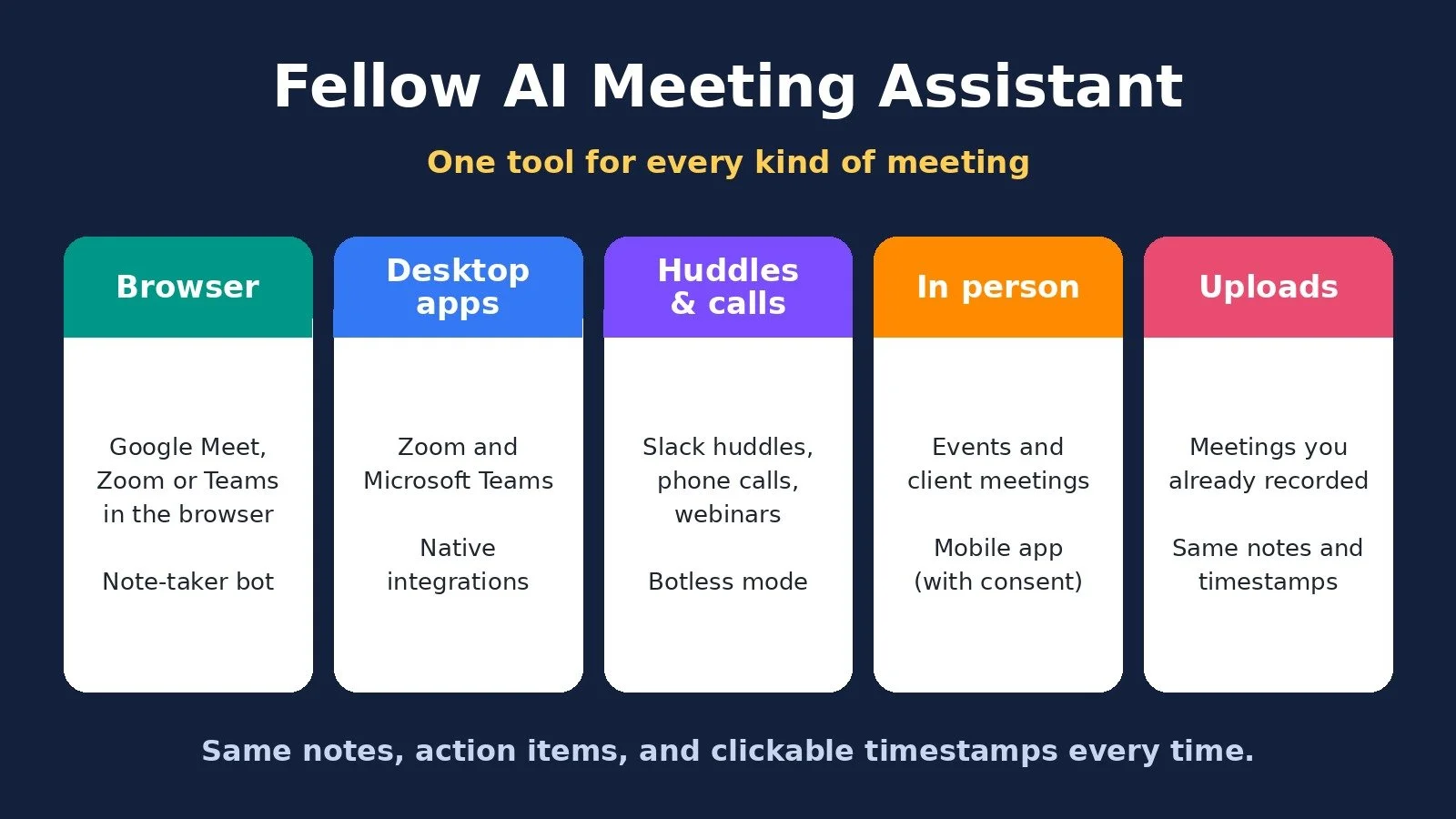
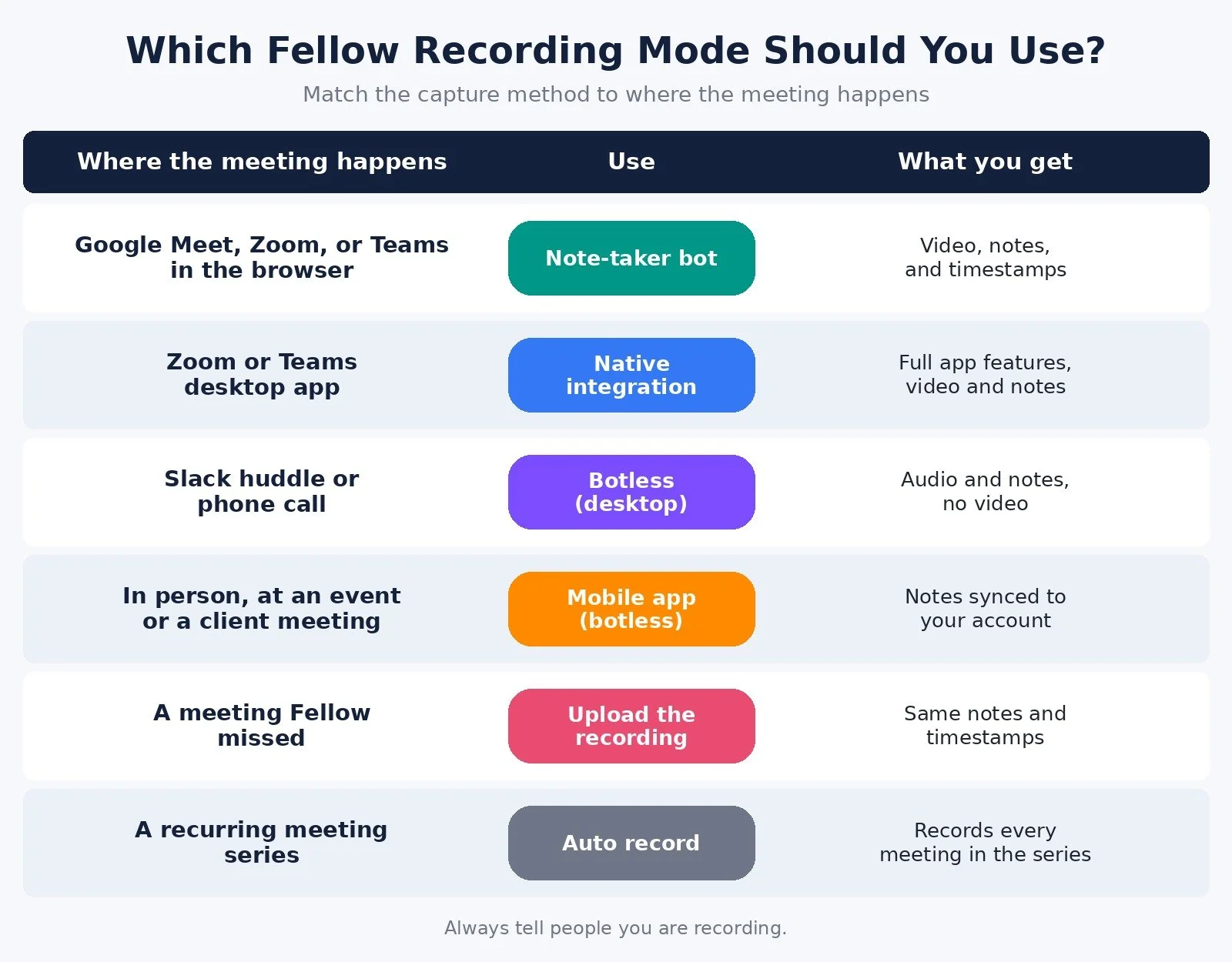
Fellow is an AI meeting assistant that gives you several ways to record a meeting: a note-taker bot for browser meetings, native Zoom and Microsoft Teams integrations, a botless recording mode for huddles and calls, a mobile app for in-person conversations, and uploads for meetings you already recorded. Every method ends in the same detailed notes, action items, and timestamps you can click to replay the exact moment something was said.
Why Most AI Note Takers Fall Short
Most AI meeting tools are built around one way of recording. Usually that is a bot that joins a scheduled video call. That works for a calendar invite with a Google Meet link. It breaks down for everything else.
My meetings do not all look the same. Some clients prefer Zoom, some use Teams, and some people just want to jump on a quick Slack huddle. Then there are phone calls, and conversations at events where there is no meeting link at all. If my note taker only handles one of those, I end up with gaps in my records, and the whole point of the tool falls apart.
The other problem is what you get after the meeting. A basic transcript is not that useful. I do not want to read through an hour of text to find one moment, and I do not want to blindly trust that the AI summary did not miss something important.
How I Set Up Fellow
Setup took a few minutes. Here is what I did:
Start on the free plan. Fellow has a free plan, so you can try it on your own meetings first.
Log in with your Google or Microsoft account, whichever one holds your meetings and calendar, and give Fellow access.
Follow the remaining setup steps Fellow walks you through.
Download the Fellow desktop app. It is technically optional, but I recommend it. The app gives you meeting notifications and the botless recording mode. It is available on Mac and Windows and detects which one you are on.
Open the app and log in. You land on the Fellow desktop, and you are ready to record.
Five Ways I Capture Meetings With Fellow
This is the part that sold me. Fellow does not force every meeting into one recording method.
1. Browser meetings (Google Meet, Zoom, or Teams in the browser)
For a standard web meeting, the Fellow AI note taker joins the call. You can see it in the call as the Fellow note-taker. When the meeting ends, you get the full set of notes, which I cover in the next section.
2. Zoom and Microsoft Teams desktop apps
A lot of the time I join through the Zoom or Teams app, depending on what the other person prefers. Fellow has native integrations with both, so the Fellow note-taker shows up right inside the desktop app. I keep all of the app's features without switching to the browser version, and I still get the notes and the video recording.
3. Slack huddles and phone calls (botless recording)
Not every important conversation has a meeting invite for a bot to join, and often there is no video. For those, I use botless recording. In the desktop app, I hit the microphone and choose to record now, botless, and it starts immediately.
Botless mode uses your computer's microphone and works out who is speaking. You get the same notes and features, just without a video, because nothing is being filmed.
I also use botless mode for things that are not meetings at all, like a webinar or a video where I cannot get a transcript. It is a quick way to get a summary and notes I can follow along with.
One important note. Because no bot joins, you could technically record people without them knowing. Do not do that. It is not ethical. Always tell people you are recording.
4. In-person meetings (mobile app)
I was recently at VidSummit and met a lot of people, including potential clients. That is a lot of conversations to keep track of, and this is where Fellow came in really handy for me.
Fellow has a mobile app for iOS and Android that uses the same botless mode. I ask the person for their consent, hit record, put my phone down on the table, and have a normal conversation without typing anything. When we are done, the notes sync to the app and to my Fellow account, so I can open them on my computer too.
5. Meetings you already recorded (uploads)
Sometimes I miss a meeting my team had, or I forget to invite Fellow. If you have the video recording, you can upload it. Once it is processed, you get the same notes and timestamps as if Fellow had joined the meeting.
What You Get After Every Meeting
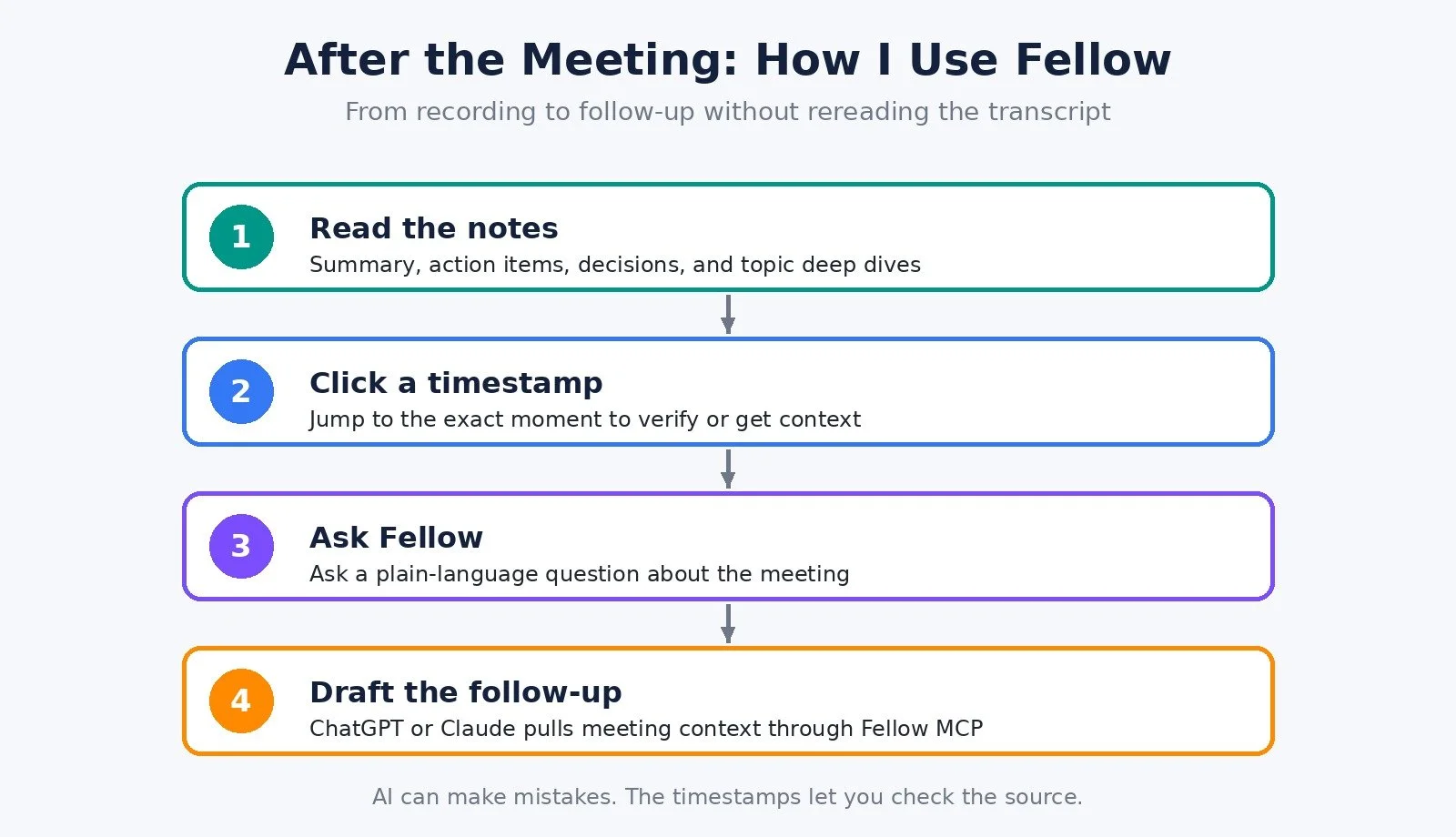
Fellow calls its output "human-level notes," and on my real calls they are some of the most detailed and best organized I have seen. Each meeting includes:
The full recording, which you can scrub to any point (video for bot and Zoom recordings, audio only for botless)
A summary
Action items
Decisions
Topics, with deeper dives into each one that was discussed
Clickable timestamps
My favorite feature is jumping straight to the timestamp behind a note. If I want to verify where something was said, or understand the context around it, I click and I am at that exact moment in the recording.
This is especially helpful when a few weeks pass between a meeting and the follow-up. I can refresh myself on what we last talked about without reading the whole transcript. It also gives me confidence, because AI can make mistakes. If something in the summary looks off, I can check the source in seconds.
Ask Fellow
Ask Fellow lets you ask questions about a meeting in plain language. In the video, I asked about a call with a vendor I may work with: "What were the cancellation terms?" Fellow answered right there. It is a more natural way to get caught up, and it helps when the detail you need did not make it into the notes.
Calendar Automation: Pick Which Meetings Get Recorded
With the desktop app, you get a notification when a meeting is about to start, so you can have Fellow join. You can also invite it with a link.
The handiest way, though, is right from the calendar. You can add Fellow to a meeting with one click. When I have a busy day, I quickly choose the meetings I want recorded and skip the ones I do not.
For recurring meetings, you can automate it. Go to the series settings, open automations, and turn on auto record. Fellow then picks the best way to record by default, or you can choose between bot recording, Zoom native recording, and botless recording.
Using Fellow With ChatGPT and Claude
Fellow connects with a lot of the apps you already use. My favorite is ChatGPT or Claude through Fellow's MCP connection.
Adding it took seconds. In ChatGPT, I went to plugins, found Fellow, hit install, and logged in. After that, ChatGPT can access my meeting information in Fellow.
I use this to write follow-ups. After a meeting, I asked ChatGPT to write a follow-up to the person I had just met with. It went into Fellow, found the latest context from our last meeting, and wrote an email that actually reflected what we discussed. If you like the idea of an assistant that handles the work after a meeting, my post on an AI meeting assistant that finishes your work goes further down that path.
Fellow Pricing (Checked November 11, 2026)
These prices come from fellow.ai/pricing, checked on November 11, 2026. Prices are per user. Confirm on the official page before you pay, because plans change.
Free: $0 billed annually / $0 billed monthly / 5 AI notes and recordings each per user (lifetime)
Team: $7 per user per month billed annually / $11 per user per month billed monthly / 10 AI notes and recordings each per user per month
Business: $15 per user per month billed annually / $23 per user per month billed monthly / Unlimited AI notes and recordings
Enterprise: $25 per user per month billed annually / Contact sales / Unlimited AI notes and recordings, starts at 10 users
A few things worth knowing from the same page:
The Free plan is for testing. Five lifetime AI notes and recordings is enough to see how Fellow handles your real meetings, not enough to run your business on.
Team adds meeting automations, project management integrations, Notion and Confluence integrations, and API access.
Business adds unlimited notes and recordings, sales recap templates, and Salesforce and HubSpot integrations.
When a trial ends, Fellow says your workspace moves back to the Free plan.
Who Fellow Is For
Based on how I use it, Fellow fits best if:
Your meetings happen in different places. Browser calls, Zoom or Teams apps, huddles, phone calls, and in-person conversations.
You meet clients, prospects, or partners at events and want a record of each conversation, with their consent.
You need to check what was actually said, not just trust a summary. The timestamps make that fast.
You write a lot of follow-ups and want ChatGPT or Claude to draft them with real meeting context.
It may be more than you need if almost every meeting you have is a scheduled Google Meet call and you are happy with a basic summary. If you prefer a notepad-style tool that never joins as a bot, my Granola review covers that approach.
My Verdict
At the end of the day, a meeting assistant is supposed to make you more efficient. If the notes are weak, if it only works with certain kinds of meetings, or if you still have to dig through a long transcript to find what was said, it defeats the purpose.
That is what makes Fellow useful to me. It captures every kind of meeting I have, the notes are detailed and well organized, and when I am unsure about something, I can jump back to the exact moment and hear it again. Everything I need from a meeting assistant is in one place.
If you want to test it on your own meetings, you can try Fellow for free here.
FAQ
What is Fellow AI?
Fellow is an AI meeting assistant that records meetings and turns them into notes, summaries, action items, and decisions, with timestamps that link back to the recording. It works through a note-taker bot, native Zoom and Teams integrations, botless recording on desktop and mobile, and uploads.
Does Fellow work without a bot?
Yes. Botless recording uses your computer's or phone's microphone, so it works for Slack huddles, phone calls, and in-person meetings. You get the same notes without a video. Always tell people you are recording.
Is Fellow AI free?
Fellow has a Free plan. On November 11, 2026, its pricing page listed 5 lifetime AI notes and 5 lifetime AI recordings per user on Free. Paid plans start with Team at $7 per user per month billed annually.
Does Fellow work with Zoom and Microsoft Teams?
Yes. Fellow has native integrations with the Zoom and Teams desktop apps, and it can also join browser meetings on Google Meet, Zoom, and Teams.
What to Do Next
List where your meetings actually happen: browser, Zoom or Teams app, huddles, calls, and in person.
Start Fellow's free plan and install the desktop app for notifications and botless mode.
Record a few real meetings, then test the timestamps and Ask Fellow on them.
Browse Best Tools for the rest of the stack I recommend.
If you want help building AI workflows around your meetings, follow-ups, and client work, I take on automation strategy projects through my services.
Disclosure: the Fellow links in this post are affiliate links, and my video on Fellow was sponsored by Fellow. If you sign up through these links I may earn a commission at no extra cost to you. Everything here is based on how I actually use the tool.
Make more. Spend less. Work less. Capture every meeting once, then stop digging through transcripts.