I made an AI clone of myself from one photo in less than five minutes. It looks like me, it sounds like me, and I can use it to generate fully edited videos on any topic just by typing a prompt.
The tool is VEED. In the video below I show the whole process: the photo, the voice clone, the templates, two ways to write the script, and what the finished videos actually looked like.
This post is the written version of that walkthrough, step by step, plus what I would tell a friend before they try it. If you want the bigger picture on avatar videos first, my guide on how to create an AI avatar covers the basics.
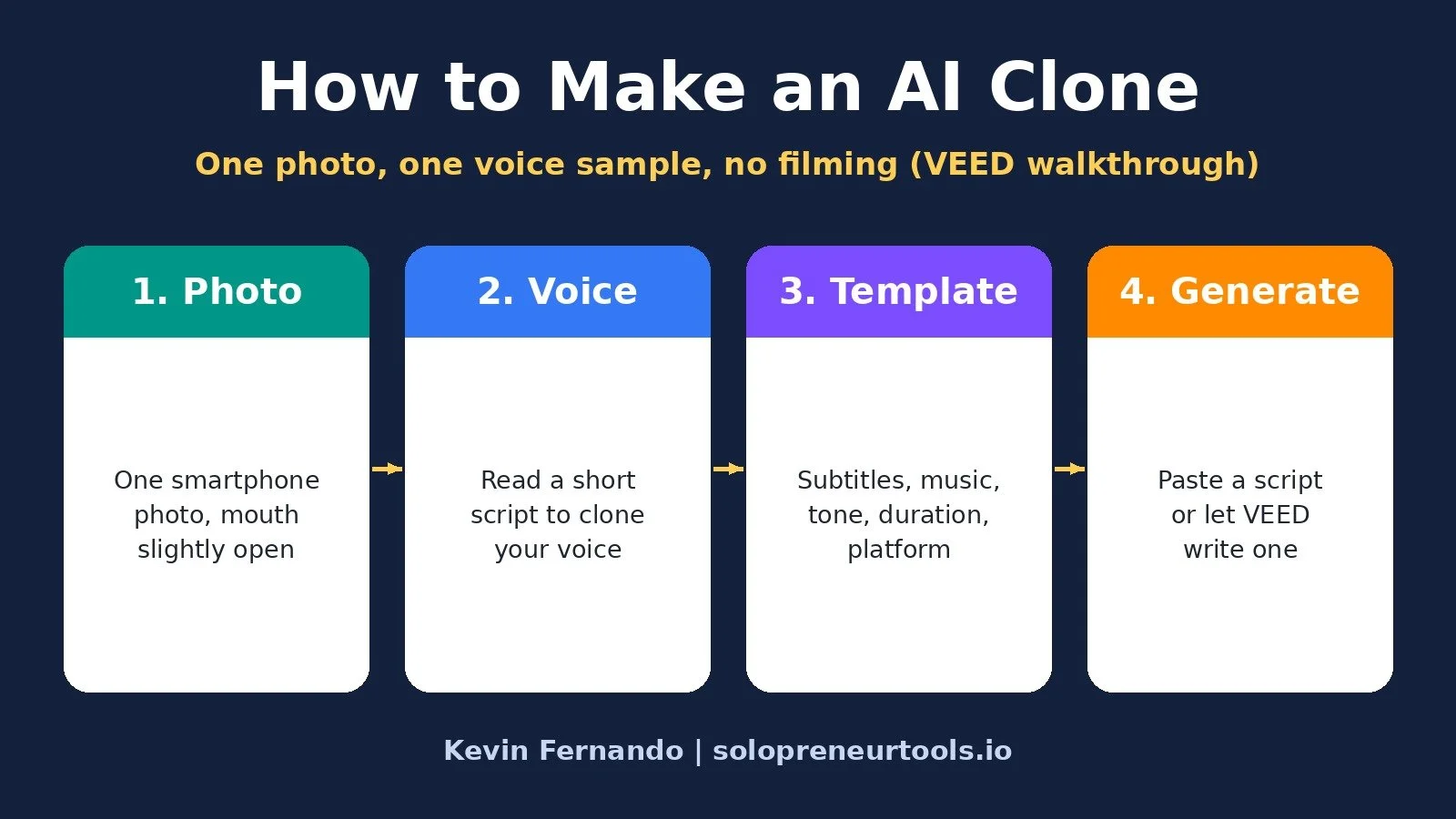
How to Make an AI Clone: The Short Answer
To make an AI clone with VEED, upload one well-lit photo of yourself with your mouth slightly open so your teeth show, confirm it is your likeness, and record yourself reading a short script to clone your voice. Then pick a template, paste a script or let VEED write one from a topic, and generate a fully edited talking video with subtitles, music, and transitions.
What You Need Before You Start
You do not need a studio or a camera setup. You need:
A VEED account. You can sign up with Google, Apple, Microsoft, or a work email. It takes a few seconds.
One photo of yourself. The smartphone you already have is fine.
A quiet minute to record your voice. You read a short script out loud.
A topic or a script for your first video.
Step 1: Start Your AI Clone in VEED
Once you create your account you land in the VEED dashboard. Hit "create your AI clone." From here, all you need is a single photo.
Step 2: Take the Right Photo
This is the step that matters most, so take your time with it.
Framing and lighting
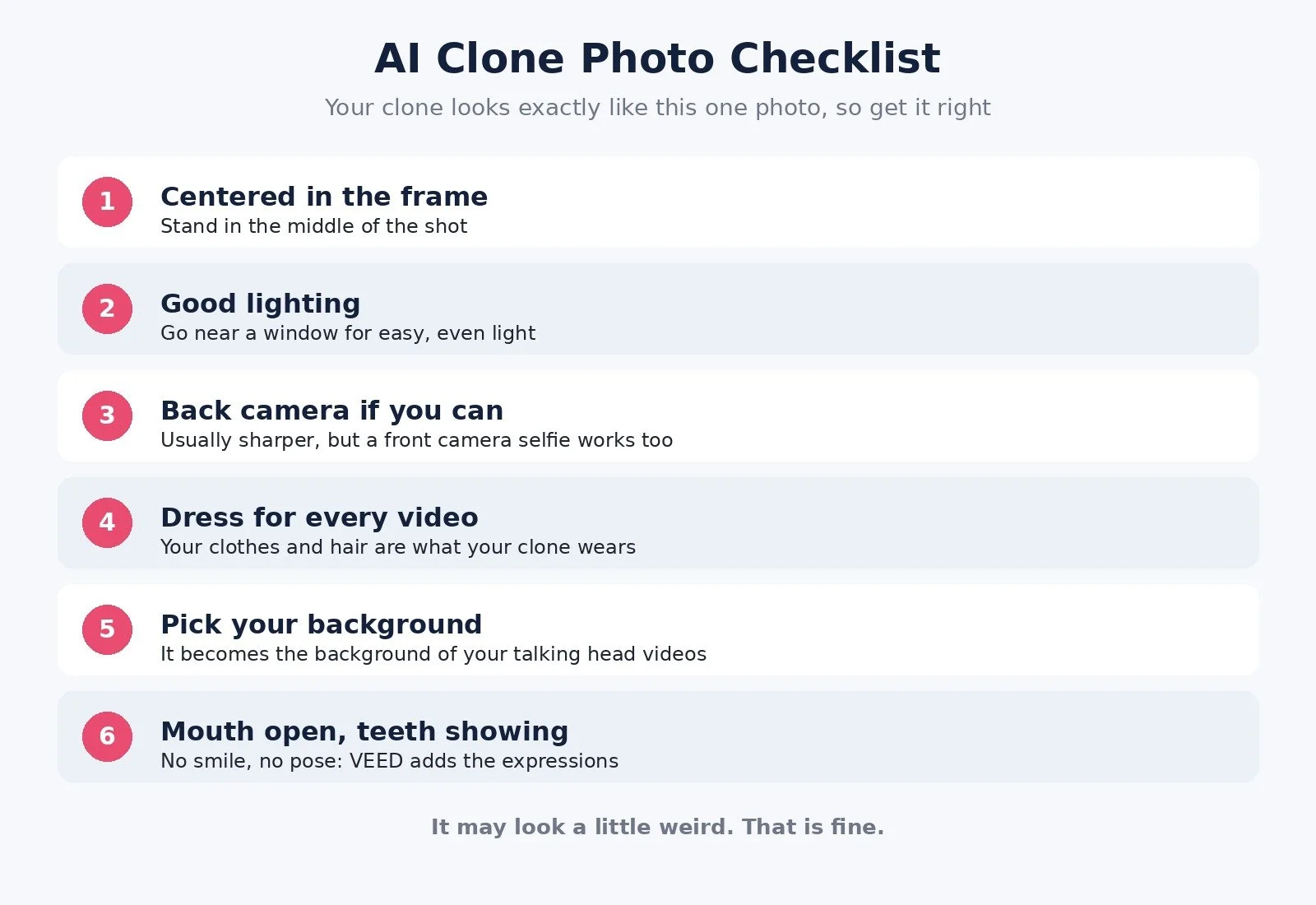
Stand in the middle of the frame.
Use good lighting. Going near a window is an easy way to get it.
Use the back camera if you can. It is usually better, but a front camera selfie works fine too.
Clothes and background
Wear whatever you want your clone to wear, and do your hair the way you want it. That is exactly what your clone will look like. Be mindful of your background too, because it becomes the background of your talking head explainer videos.
Mouth open, teeth showing
In my reference photo my mouth is open, and that is actually very important. VEED needs to see your teeth. So do not smile, and do not pose. Look natural, with your mouth slightly open. It might look a little weird, and that is fine. VEED handles all the expressions for you later.
Step 3: Upload and Verify Your Likeness
Hit "upload an image" and choose your photo. VEED asks you to verify that this is your likeness and that you are not cloning anyone else. Confirm it and hit continue.
Step 4: Clone Your Voice
Hit "clone voice" and read the script VEED shows you on screen. It is two short sentences about creating a voice clone to use with your character.
Hit stop, agree, and continue. VEED takes a few moments to build your cloned voice, then shows that it was added.
Step 5: Preview Your Character
Click on your new character to see a preview. Mine talked about creating talking videos from a script and an idea, in my voice. That is pretty crazy for a few minutes of setup, and it looked pretty good.
Step 6: Pick a Template and Check the Settings
Now it is time to make content. The easiest way to start is with a template. Templates are grouped by style and subject. Watch a few and pick the one whose subtitles and music match your tone and style. That is really what you are choosing.
Hit "use template," click on character, and swap in yourself. The template then fills in a set of selections you can change:
Subtitle style
Music
Tone of voice (mine was set to confident)
Video type (auto select, or pick one)
Audience, where you can give more context
Duration
Platform, like LinkedIn, or auto select so VEED picks based on your topic and script
A template just preconfigures all of this for you. You can customize any of it.
Step 7: Generate Your AI Clone Video (Two Ways)
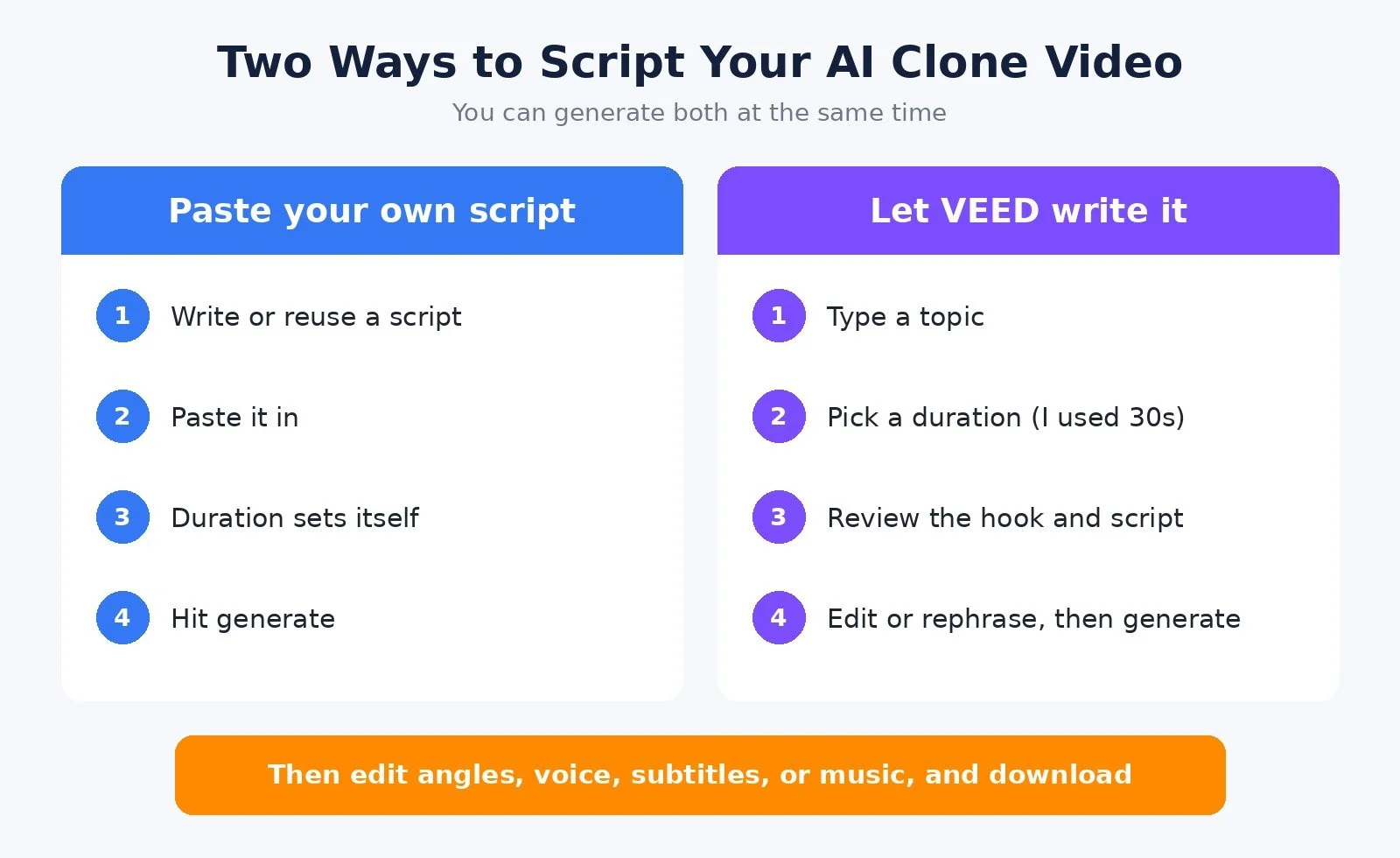
Once your settings look right, all that is left is the content. You have two options, and you can generate more than one video at a time, so I did both at once.
Option 1: Paste your own script
If you already wrote a script, paste it in. The duration is set automatically from the length of the script. Hit generate and VEED goes to work.
Option 2: Let VEED write the script
Give VEED a topic instead. My topic was: "Explain why successful entrepreneurs focus on solving their customers' biggest problems instead of chasing every new business opportunity." I set the duration to 30 seconds and hit "generate script."
VEED researched the topic, wrote a hook, and came back with a 30-second script. You can edit it, or hit "rephrase" for another version. I was happy with it, so I hit "generate video."
What the Finished Videos Looked Like
Everything you generate is saved in VEED, so you can always go back to it.
The video from my own script opened with the line "Most solopreneurs think growing their business means doing more." A few things stood out:
It cut between a zoomed-in shot and a zoomed-out shot
My hands moved while I talked
It came fully edited, with music, subtitles, and transitions
The video VEED scripted opened with "The best founders I know say no to almost every new idea." The detail that surprised me most: my clone made a pose that was not in my photo at all. VEED interpreted it.
Both came from one photo and a short voice recording. No filming, no editing.
Step 8: Edit and Download
When a video is done, you can download it right away or hit edit. In the editor you can:
Change the live script. Edit a line and VEED regenerates it. You can also add a scene if something is missing.
Change the camera angle for each scene: side, close-up, wide, or ultra-wide
Change your voice, subtitles, or music
Hit done and VEED applies the changes. Then download your finished video and use it on social media, to explain your products or website, or for anything else you need.
Beyond Talking Heads: UGC Ads and Custom Characters
Talking head explainers are not the only videos VEED can make. Under "create asset" there are example videos you can recreate with your own character, a stock character, or a character you make up.
Here is what I made:
A UGC style ad with my clone, recreated from a template by swapping in my character, a background, and my website
A two-scene protein gummies ad with a custom character I made up. He is not one of VEED's stock characters. I found a product image and swapped it in.
An ad featuring Red Bull with one of VEED's stock characters
These more advanced videos go through VEED's video editor. It is still easy to use, but it is beyond the scope of this walkthrough. If you want a full video on those use cases, let me know in the YouTube comments.
VEED Pricing (Checked November 11, 2026)
These details come from VEED's official pricing page, veed.io/pricing, checked on November 11, 2026. VEED shows prices in your local currency where available, so what you see may differ. Confirm before you pay.
Free: $0. Exports are watermarked, and the voice clone is listed as "try once."
Creator: $147 billed yearly (about $12 per user per month). No watermark, unlimited auto subtitles, and voice cloning.
Pro: $265 billed yearly (about $22 per user per month). Everything in Creator, plus multiple brand kits and translation into 50+ languages.
Enterprise: custom pricing.
A few things to know. Plans are charged per editor seat, so the price multiplies with each editor you add. Paying monthly costs more than paying yearly. VEED's page says yearly saves up to 51%. AI generations use credits, and VEED's FAQ says credits refresh when your plan renews and do not carry over. Custom characters are generated with credits on every plan.
If you want to try it yourself, you can create your AI clone with VEED here. In my video description I also shared code KEVIN30, listed as 30% off your first month or year of VEED, limited to 100 redemptions. It may be used up by the time you read this, so check that it applies at checkout.
Who an AI Clone Is For
A good fit if you:
Want to post on social media regularly but do not want to film or edit every video
Need product explainers or website walkthroughs and keep putting them off
Want to test ad concepts, like UGC style ads, without hiring creators
Already write scripts or have ideas, and filming is the bottleneck
Think twice if you:
Only post once in a while. Filming yourself on your phone may be enough.
Want every video to be truly unscripted and spontaneous
If you want to automate the whole pipeline after the video is made, my post on automating AI avatar videos and posting them everywhere picks up from there.
Tips Before You Make Your Own
Spend the most effort on the photo. Centered, well lit, mouth open, wearing what you want to be seen in, with a background you are happy to use in every video.
Start with a template. It sets the subtitles, music, and pacing for you. Change one thing at a time once you see a result.
Use your own words. VEED's script writer is a good starting point, but read the script before you generate. Edit anything that does not sound like you, or hit rephrase.
Batch your videos. You can generate more than one at a time, so queue a few while you review the first.
FAQ
How long does it take to make an AI clone with VEED?
In my walkthrough it took less than five minutes: one photo, a short voice recording, and a few moments for VEED to process the voice.
Do I need a professional camera?
No. A smartphone photo works. Use good light, like a window, and the back camera if you can.
Why does VEED need to see my teeth?
VEED creates all the expressions for you, and it needs to see your teeth in the photo to do that. Keep your mouth slightly open and do not smile or pose.
Can VEED AI write the script for me?
Yes. Give it a topic and a duration and it researches, writes a hook, and drafts the full script. You can edit it or rephrase it before generating the video.
What to Do Next
Take your reference photo: centered, near a window, mouth slightly open.
Sign up for VEED, create your AI clone, and record your voice.
Pick a template, paste a script you already wrote, and generate your first video.
Browse Best Tools for the rest of the stack I recommend.
If you want help building AI content systems for your business, I take on projects through my services.
Disclosure: VEED sponsored the video this post is based on, and the VEED links in this post are affiliate links. If you sign up through them I may earn a commission at no extra cost to you.
Make more. Spend less. Work less. Let your clone do the filming so you can focus on the ideas.