Best Email Management Tools for Solopreneurs (2026): SaneBox vs Clean Email vs Free Filters
When you run a business alone, your inbox is your front desk, sales line, and junk drawer at once. Every client email sits next to a receipt, a newsletter, and a promo you never asked for.
Email management tools exist to fix that. But "email management" means different things depending on what is actually wrong with your inbox, and that is where people pick the wrong tool.
This is a decision guide, not a setup tutorial. No step-by-step walkthroughs and no template files. Just three options that cover most solo businesses: SaneBox, Clean Email, and the free tools built into Gmail and Outlook. What each does, how it charges, where it falls short, and who it fits.
If you want the deep dive on SaneBox alone, my SaneBox review after 2 years covers it feature by feature. This post is the wider decision.
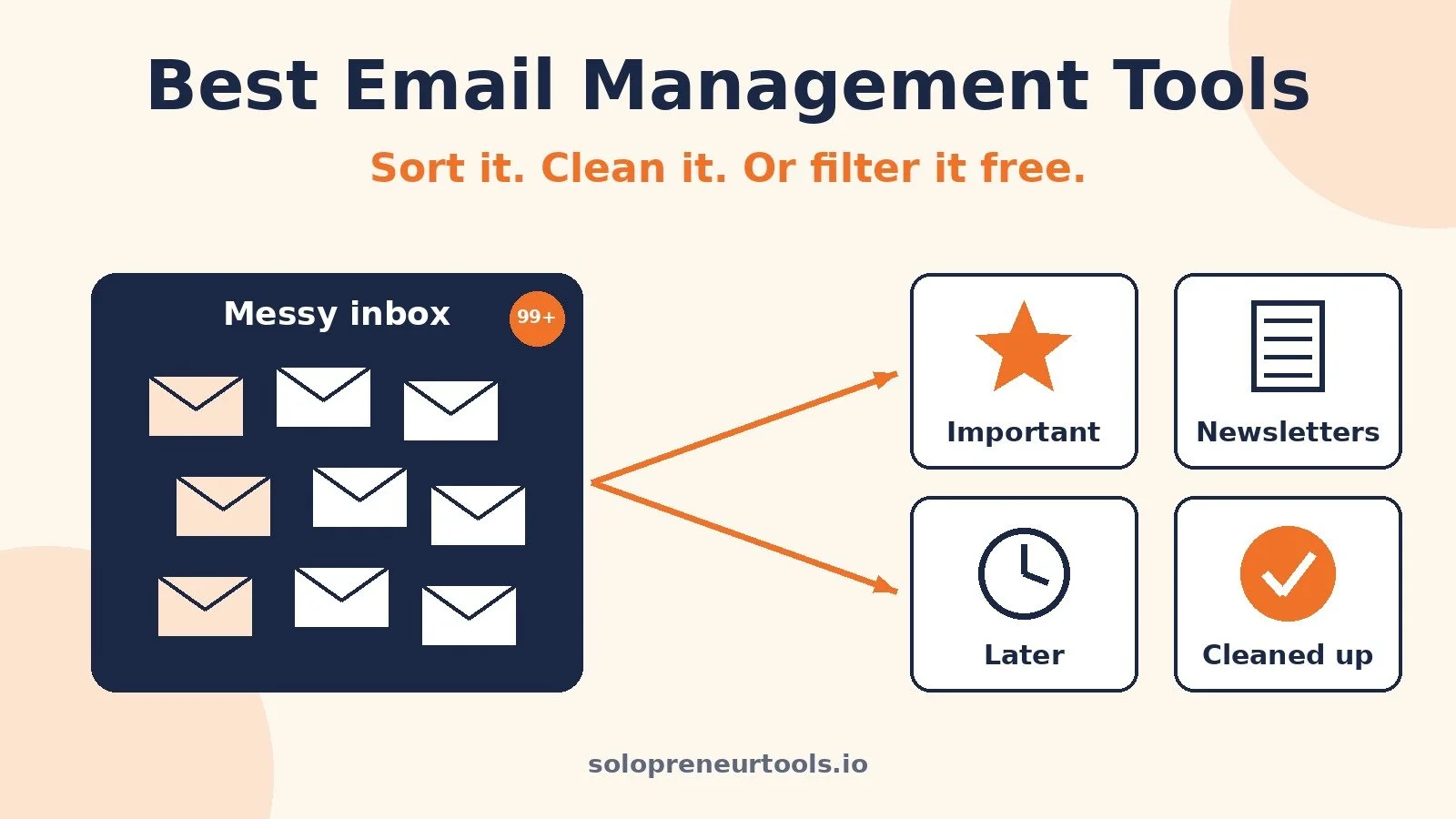
The Short Answer
SaneBox if new email keeps burying the messages that matter. Clean Email if you are sitting on years of old email and newsletters you want gone. Gmail or Outlook's built-in tools if your inbox is mostly under control and you just need a few rules.
Most solos only need one of these.
First, Name Your Email Problem
Most inbox pain falls into one of three buckets:
Sorting: important messages from clients and leads get lost among everything else that arrives each day. This is a flow problem.
Clutter: you have thousands of old emails, dozens of newsletters, and a mailbox that feels too big to face. This is a backlog problem.
Rules: predictable email from predictable senders that just needs filing. This is a setup problem.
SaneBox is built for sorting, Clean Email for clutter, and built-in filters for simple rules. Pick your bucket before you compare features.
Quick Comparison
SaneBox: Best for: Sorting new email so important messages stay in your inbox. Pricing model: Plans by number of email accounts and features, billed monthly, yearly, or every 2 years. Free option: 7-day free trial.
Clean Email: Best for: Bulk cleanup, unsubscribing, and rule-based auto cleaning. Pricing model: Plans by number of accounts (1, 5, or 10), billed monthly or yearly. Free option: Free account for up to 1,000 emails, plus a 14-day Premium trial.
Gmail built-in tools: Best for: Filters, labels, and unsubscribing on a Gmail account. Pricing model: Included with Gmail. Free option: Free.
Outlook built-in tools: Best for: Focused and Other tabs, rules, and Sweep on an Outlook account. Pricing model: Included with Outlook. Free option: Free.
All prices and plan details below were checked on official pricing or help pages on October 20, 2026. Prices change, so confirm before you pay.
1. SaneBox: Best for Sorting New Email Automatically
Who it fits: solos with a steady daily stream of email who keep missing or delaying replies to clients and leads because those messages are buried.
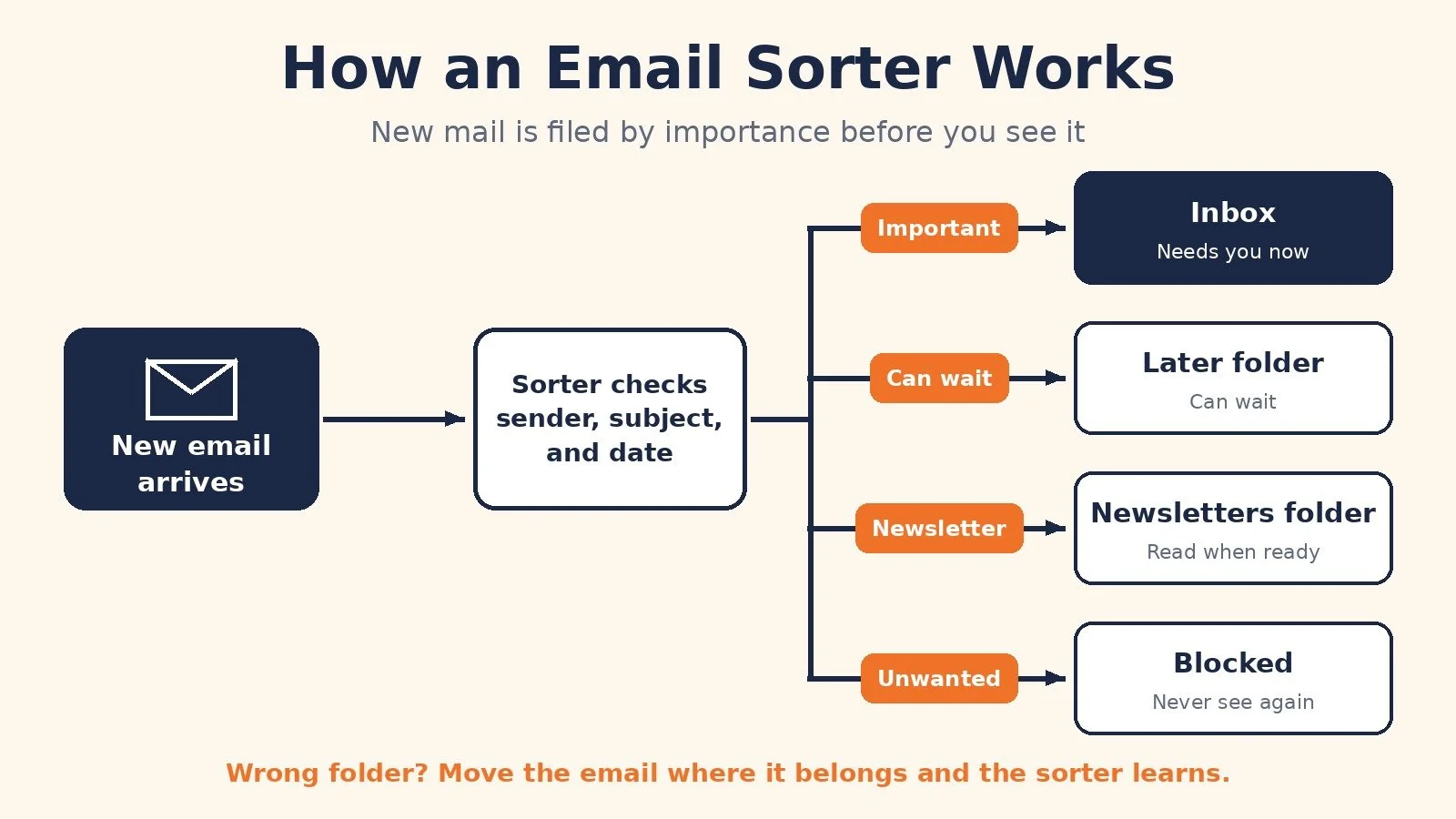
What it does: SaneBox connects to the email account you already use and sorts incoming mail by importance. Unimportant messages move to a separate SaneLater folder, newsletters can be rounded up in SaneNews, and senders you never want to hear from again can go to SaneBlackHole. It also offers follow-up Reminders, Snooze, a Daily Digest of unopened low-priority email, and Email Deep Clean for clearing out old messages. You train it by moving an email to the right folder.
It works with Gmail, Microsoft 365, Apple iCloud, Yahoo Mail, Fastmail, and any IMAP or Exchange server, so you keep your current email app. SaneBox says it looks at basics like sender, subject, and date, and does not store full emails or attachments.
Pricing model: plans by number of email accounts and how many SaneBox features you can switch on. When I checked sanebox.com/pricing, Snack (1 email account, pick 2 features) was $9.49 a month billed monthly, $65 a year, or $109 every 2 years. Lunch (2 email accounts, 6 features per account) was $15.99 a month, $109 a year, or $179 every 2 years. Dinner (4 email accounts, all features, plus phone support) was $42.99 a month, $319 a year, or $529 every 2 years. The 7-day free trial includes all features for up to 4 accounts. The partner signup page linked below also offers a $25 credit toward a SaneBox subscription and says no credit card is required to start.
Limits to know: SaneBox needs some training at first, so expect to correct a few misfiled messages early on. The feature allowance matters as much as the account count: Snack lets you pick only 2 features. You still read and reply in Gmail, Outlook, or whatever app you use.
Pick it if: the daily flow is the problem and you want your inbox to show only what needs you. Start the SaneBox free trial here. If you use Gmail, my guide on how to organize Gmail automatically with SaneBox shows how the folders fit, and Inbox Zero on autopilot with SaneBox covers the daily routine.
2. Clean Email: Best for Cleaning Out a Messy Mailbox
Who it fits: solos with a huge backlog, too many newsletters, or a mailbox running out of storage.
What it does: Clean Email groups your email into bundles and Smart Folders, such as old emails or messages from social networks, so you can archive, delete, move, or label hundreds at once instead of one by one. Its Unsubscriber sends unsubscribe requests for you and moves mail from senders who ignore them to the trash. Auto Clean applies rules to new mail, like archiving social notifications or removing emails once they reach a certain age. Screener holds unknown senders until you approve or block them.
It works with Gmail, Yahoo, Outlook and Hotmail, AOL, and company email accounts, on the web, Mac, iPhone, iPad, and Android, alongside your current email app. Clean Email says all of its income comes from subscriptions, not selling your data.
Pricing model: plans by number of accounts (1, 5, or 10), paid monthly or yearly, with all features included in every plan and yearly billing costing less. When I checked clean.email/plans, the page did not display US dollar prices, so check the live plans page for your exact price. There is also a free account that lets you clean up to 1,000 emails, without Premium features like Screener, Auto Clean, and Unsubscriber, plus a 14-day Premium trial with no credit card that includes 25 unsubscribe actions.
Limits to know: Clean Email's automation does what you tell it, while SaneBox's core job is deciding what is important for you. The free account's 1,000-email limit also goes quickly on a big backlog.
Pick it if: your main problem is the pile, not the flow. Try Clean Email here.
3. Gmail and Outlook Built-in Tools: Best If You Want to Pay Nothing
Who it fits: solos with a manageable inbox and predictable senders.
What it does: Gmail filters can send matching email to a label, archive it, delete it, star it, or forward it. Gmail's Manage subscriptions view lists your subscription senders by recent volume and lets you unsubscribe with a click. Google notes it is still rolling out and may not be on every account yet.
Outlook's Focused Inbox splits your inbox into Focused and Other tabs, and you can pin a sender to either tab. Outlook rules move or delete messages as they arrive, and Sweep can remove everything from a sender, keep only the latest email, or delete email older than 10 days.
Pricing model: included with your Gmail or Outlook account.
Limits to know: rules only know what you tell them. Every new sender or client means another rule, and when work gets busy, manual systems fall behind. They also only work inside their own email provider.
Pick it if: you want to try the free route before paying for anything. My Gmail organization guide also compares SaneBox with Gmail filters directly.
SaneBox vs Clean Email: The Real Difference
On paper these two overlap. Both connect to your existing mailbox, help with unsubscribing and old email, and work with the major providers. The difference is the job each one is built around.
SaneBox is about what reaches your inbox each day. Its core job is filtering new mail by importance. Deep Clean handles old email, but it is not the main event.
Clean Email is about what is already in your mailbox and the rules you set for it. Its core job is bulk cleanup, unsubscribing, and automation you control.
A simple test: if your problem would disappear after one big cleanup, start with Clean Email. If it would be back next week anyway, that is a sorting problem, and SaneBox is the better fit.
On cost, compare the plan you would actually use. For one inbox, SaneBox Snack is the entry point. For several accounts that mainly need cleanup, price out Clean Email's multi-account plans.
Pick by Situation
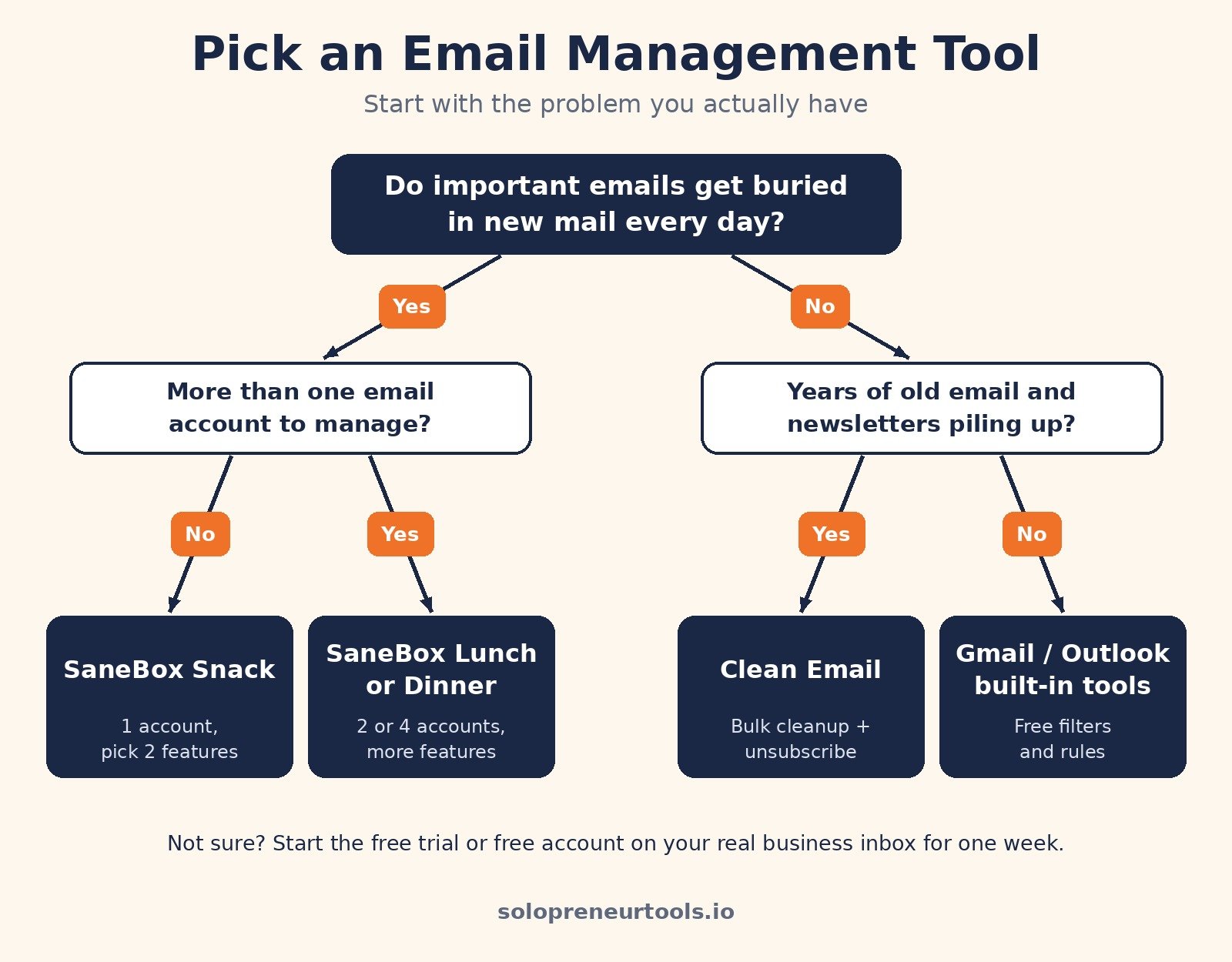
Client and lead emails get buried under everything else: Pick: SaneBox. Why: Sorts new mail by importance so the inbox shows what needs you.
You forget to follow up when someone does not reply: Pick: SaneBox. Why: Reminders tell you when a sent email has not had a response.
Years of old email and newsletters you never read: Pick: Clean Email. Why: Bulk cleanup, Smart Folders, and Unsubscriber.
You want unknown senders held before they reach you: Pick: Clean Email. Why: Screener holds new senders until you approve them.
Low volume and predictable senders: Pick: Gmail or Outlook built-in tools. Why: Filters, rules, Focused Inbox, and subscription management at no cost.
Several inboxes that each bury important mail: Pick: SaneBox Lunch or Dinner. Why: 2 or 4 accounts with more features; for bulk cleanup across many accounts, Clean Email has 5 and 10 account plans.
How to Choose in 20 Minutes
Look at what came in yesterday. How many messages needed you?
Check your backlog. Thousands of unread emails point to clutter. A noisy daily flow points to sorting.
Match it: SaneBox for sorting, Clean Email for clutter, built-in tools for simple rules.
Start the free trial or free account on your real business inbox, not a test account.
After a week, ask two questions: are you finding important email faster, and spending less time sorting? If yes, keep it. If not, cancel before the trial ends.
Common Mistakes
Buying a sorter for a clutter problem, or the reverse. A cleanup tool will not stop tomorrow's noise.
Unsubscribing from everything. Keep the newsletters you actually read.
Never checking the low-priority folders. Glance at SaneLater, the Other tab, or your filtered labels daily at first while the tool learns.
Picking a plan by price alone. Account limits and feature allowances decide which plan actually works for you.
For more habits that stop email from running your day, see 5 email mistakes top CEOs never make.
FAQ
Is SaneBox worth it?
It is worth testing if you lose time every day finding the emails that matter. It is less useful if a few filters already keep your inbox under control. My SaneBox review after 2 years covers the features, pros, and cons, and my SaneBox tutorial covers setup.
Is SaneBox an AI email assistant?
SaneBox describes itself as an AI-powered inbox assistant. It filters out unimportant email, helps you unsubscribe, and reminds you to follow up. It organizes your existing account rather than replacing your email app.
Can I use SaneBox and Clean Email together?
Most solos do not need both. If you combine them, use Clean Email for a one-time cleanup and SaneBox for daily sorting, so they are not working on the same messages.
Are there free email management tools?
Yes. Gmail filters and Manage subscriptions, plus Outlook's Focused Inbox, rules, and Sweep, come with those accounts. Clean Email has a free account for up to 1,000 emails. SaneBox offers a 7-day free trial rather than a free plan.
What to Do Next
Name your main email problem: sorting, clutter, or rules.
If it is sorting, start the SaneBox free trial on your real business inbox.
If it is clutter, run your backlog through Clean Email's free account or 14-day trial first.
For the wider stack I recommend, browse Best Tools.
If you want help with a system where email, leads, and follow-ups run without eating your week, I take on automation strategy projects through my services.
Disclosure: some links in this post are affiliate links (SaneBox). If you sign up through them I may earn a commission at no extra cost to you. It does not change which tool I tell you to pick.
Make more. Spend less. Work less. Let the inbox sort itself so you can get back to the work that pays.